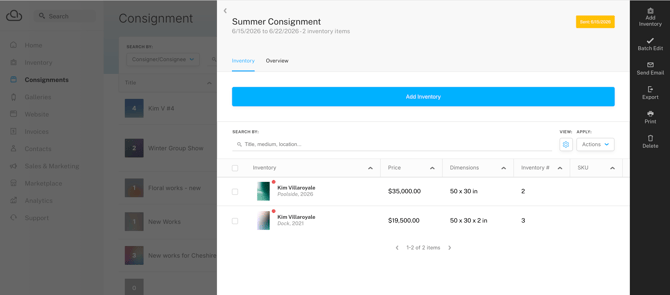
Quick Jump To Guide
Accept the Invitation
Receive Inventory from the Gallery
Add Your Own Inventory
Consign Inventory to the Gallery
Galleries can invite their artist roster to ArtCloud, linking the Gallery Account and Artist Account. Once connected, send inventory to the gallery through Gallery Consignments.
Accept the Invitation
Your gallery sends an Artist Invite to the email address associated with your Artist Record in their account. The email subject line reads "Track Your Artwork at [gallery name] with ArtCloud."
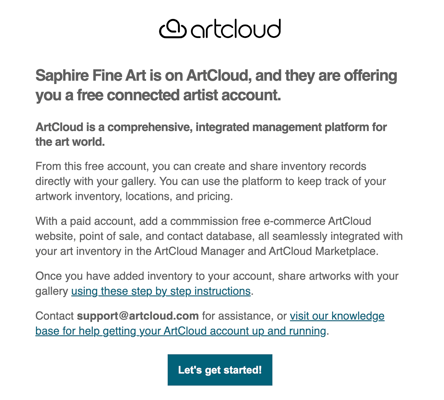
Click "Let's get started" to accept the invite and set up your account.
- If you don't already have an ArtCloud Artist Account, the email prompts you to create a password.
- If you already have an ArtCloud Artist Account, the email directs you to log in with your existing credentials.
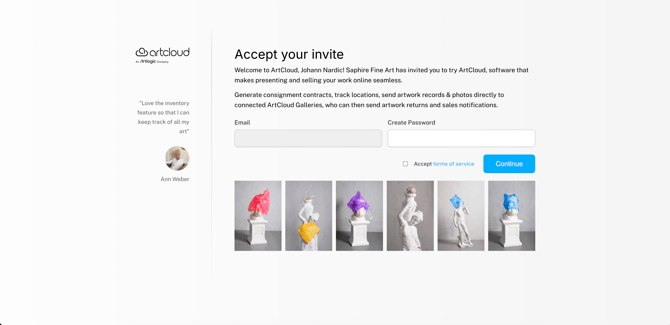
Note: New ArtCloud Artist Accounts start with a free manager subscription. Free manager accounts can create up to 50 Inventory Records, excluding consigned inventory. To upgrade your subscription, visit the Subscription page in Account Settings or contact support@artcloud.com.
Receive Inventory from the Gallery
After you accept the invite, ArtCloud creates Inventory Records in your account for all inventory attributed to you in the gallery's account. View the Consignment Record, named "Artist Invitation," for these works in the Consignments tab. The inviting gallery also appears in the Galleries tab with its location and contact information.
Add Your Own Inventory
Create or import additional Inventory Records for your artworks.
- To import inventory, navigate to Account Settings >> Import and follow the prompts to import from a CSV or another platform.
- To create new inventory, navigate to the Inventory Dashboard and click "Add inventory" at the top right.
Consign Inventory to the Gallery
Send Inventory Records to connected galleries through Gallery Consignments. After the gallery accepts your consignment, ArtCloud copies the inventory into the gallery's account. You'll receive a notification when the gallery sells a consigned artwork. Read more here: Send a Gallery Consignment.