
NOTE: This is a legacy feature, only available in legacy Website Builder Content Blocks
Most widgets in the ArtCloud Website Builder have additional options for customization that are not obvious upon first glance.
To access these options, drag a widget of any kind into your page, and hover over the widget with your mouse. You'll notice a few buttons - a green button that allows you to move the widget around, a red X to delete the widget, and a blue button with a cog wheel.
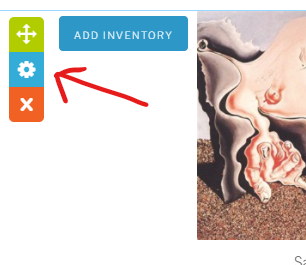
NOTE: A Cog Wheel is a common symbol in computer applications to indicate settings.
Clicking this button will make a popup appear:
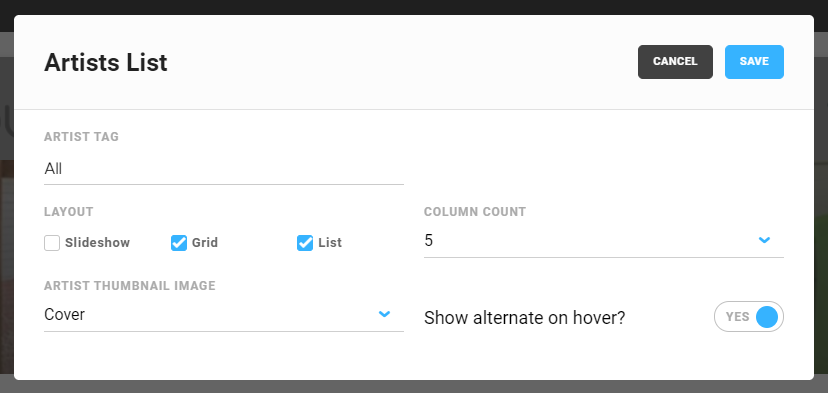
This pop-up is a result of clicking on the Artist Widget, a widget that allows you to display artists on your website. Notice the number of options that allow you to control the widget's column count, layout, and more.
NOTE: The appearance and options in each widget's settings will be different, as will their popups.