
Quick Jump To Guide:
Connect Your Accounts
Link Existing Inventory
Add New Inventory to Artsy
Making a Sale on Artsy
The ArtCloud and Artsy integration lets you sync inventory data from ArtCloud to Artsy, rather than managing records in both platforms. ArtCloud remains the source of truth for inventory, contacts, and sales data.
Connect Your Accounts
Navigate to Account Settings >> Integrations and turn on the Artsy toggle. A pop-up will ask you to review and accept the terms of service. Then log in to your Artsy account or contact Artsy to create one.
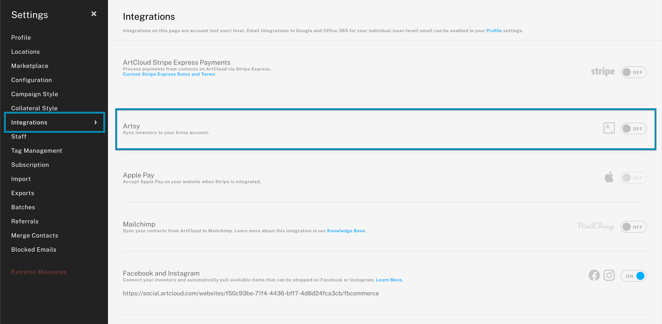
Note: The Artsy integration requires a legacy Manager Pro or Pro Plus subscription, or a new Manager Professional or Expert subscription.
To upgrade your subscription, visit the Subscription page in Account Settings or contact support@artcloud.com with questions.
Link Existing Inventory
Use the Connect Inventory dropdown to link inventory that already exists in both your ArtCloud and Artsy accounts.
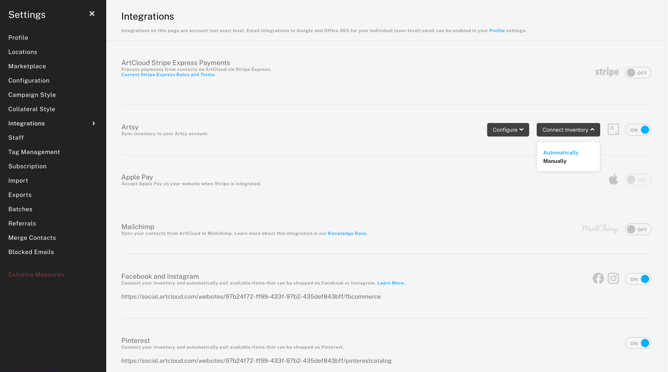
You can link inventory automatically or manually.
- Automatically: ArtCloud identifies and links matching inventory in both accounts based on artist name and inventory titles. Items link only if the fields are identical in both platforms.
- Manually: A pop-up lists inventory matches identified in both platforms. Confirm that the pieces match and link the artworks one by one.
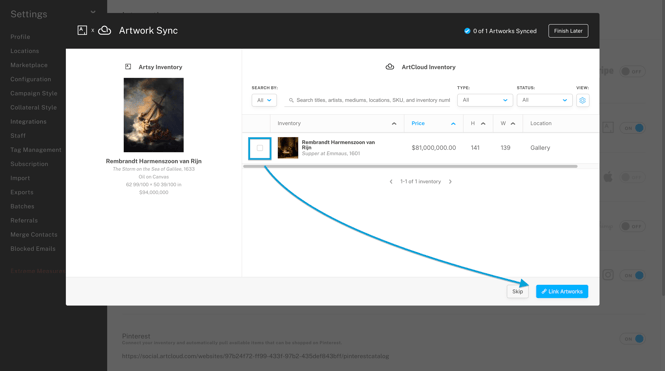
You can run the automatic link first and then manually link any remaining unmatched items.
Note: Neither the automatic nor the manual link creates new inventory in Artsy. Linking only connects matching records, allowing ArtCloud and Artsy to share inventory data.
Add New Inventory to Artsy
After the initial linking in Account Settings, use ArtCloud Inventory Records to add new inventory to Artsy or sync updates to linked inventory.
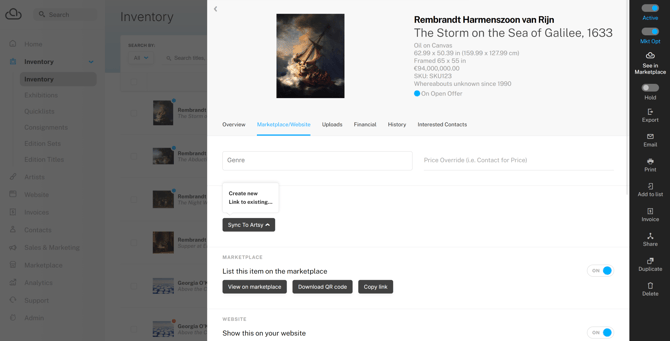
On the Marketplace/Website tab of an Inventory Record, click the "Sync to Artsy" dropdown and select "Create new" or "Link to existing."
- Create new: Creates a new listing in Artsy by syncing the data on the ArtCloud Inventory Record to Artsy. Use this option for inventory that exists in ArtCloud but not in Artsy.
- Link to existing: Links the ArtCloud Inventory Record to an existing Artsy listing. Use this option if the inventory already exists in both your ArtCloud and Artsy accounts.
After syncing or linking, you can view the item on Artsy, copy the link to Artsy, or unlink the piece from Artsy.
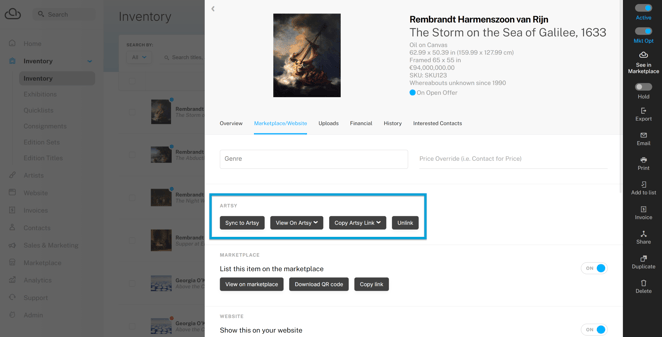
Note: Changes to an Inventory Record in ArtCloud won't automatically sync to Artsy. Manually sync the Inventory Record again after making updates in ArtCloud.
What Happens When You Make a Sale on Artsy
When linked inventory sells on Artsy, ArtCloud automatically creates or updates a Contact Record for the buyer, generates an invoice with the linked item, and marks the inventory sold.