
Batch Editing lets you update inventory data across multiple records at once. You can batch edit various fields on an Inventory Record, and some fields reveal additional options when edited. Common batch edits include adding tags, changing the location, and opting inventory in or out of your website.
Note: You can also batch edit Artist and Contact Records. The process is the same.
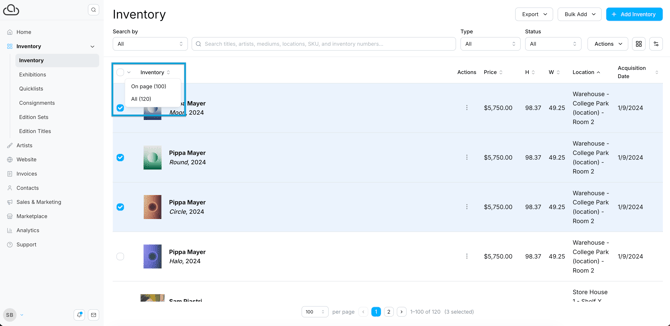
Select the Inventory Records you want to edit by picking pieces one by one, or search and filter your inventory to pull up specific records. Hover over the selection box to select all records that match your search and filter results.
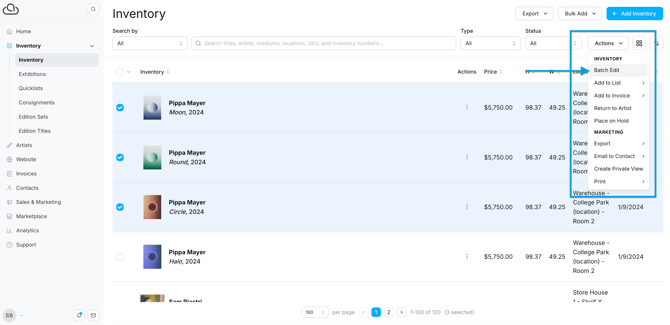
From the Actions dropdown, click "Batch Edit."
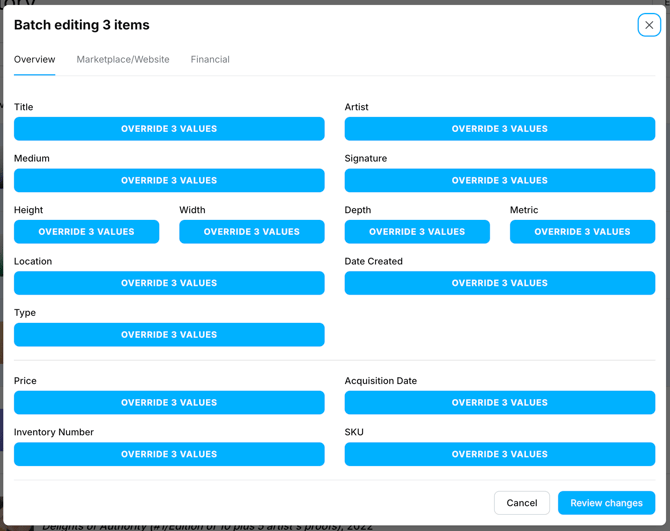
A pop-up lists the fields available to edit. For fields that can only have one value, like Artist or Medium, the value you enter replaces the current value. For the Tag field, however, the value you enter adds to the existing values on the record.
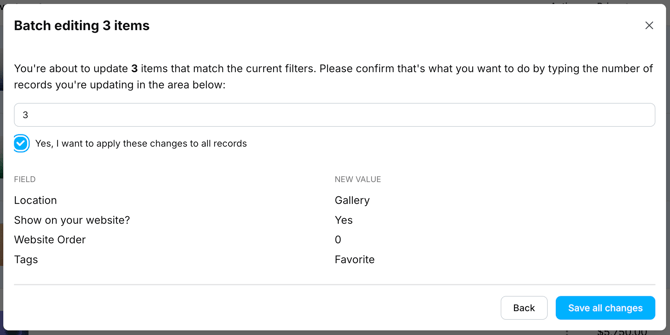
After making changes, click "Review Changes" and confirm the edits on the following screen. A tracker at the bottom right of your screen shows the batch edit progress.
Tip: Use the Batches & Exports tab in Account Settings to view a history of any Batch Edits.