Quick Jump To Guide:
Website / Marketplace Behaviors
Inventory Type
Location on Inventory
Tax Rates
Invoice Comments
Certificate of Authenticity Text
Return to Artist Terms
General
Use this tab to manage general account defaults, like your address, date format, timezone, and currency.
Assign a default inventory location and default inventory type so all newly added Inventory Records start with the same information. The location field defaults to "gallery" or "studio."
Opportunities
Customize the Opportunity stages in the Sales Opportunity Tracker. Add new stages or edit the default stages. When you create or edit an opportunity stage, you can adjust the name, likelihood to win, color, and type. Any change you make to an Opportunity Stage will affect all users associated with your account.
Learn more about opportunity stages here: How do I configure my Opportunity Stages?
Artist Management
Choose to notify your artists of sales activity. This notification only works for connected artists and consigned inventory. When inventory consigned through ArtCloud sells and the invoice closes, the connected artist will receive an automated notification. In the artist's ArtCloud account, the inventory's location will change to "Sold by [Gallery Name]."
Inventory
Configure the types of inventory available on Inventory Records and decide whether newly added inventory is opted on or off the ArtCloud Marketplace or your ArtCloud Website.
Note: Changes to these controls will affect newly added inventory going forward. For imported inventory, the data in the import will determine whether the works are opted on or off the Marketplace or website.
Tax Rates
ArtCloud Manager lets you add as many tax rates as you like for each of your business locations, so that you can separately account for state and local taxes as necessary. You can manage tax rates under the location settings, in the Locations tab of your Account Settings.
Pro Tip: When creating an invoice, you'll then be able to select which of tax rates you want to apply to that particular sale. You can then generate tax reports from your Analytics section.
Creating & managing tax rates in ArtCloud
Once in your Locations tab, you'll want to Edit the location where you want to create or manage your tax rate. Hover over the location and select the Actions dropdown menu in order to Edit. Select the Tax Rates tab:-gif.gif?width=670&height=360&name=2024-06-11_13-12-31%20(1)-gif.gif)
Here is where you can edit a current tax rate or add a new tax rate to your location. You can even add tax rates for temporary purposes and turn them inactive if you don't need them anymore.
If you want to edit a tax rate, click on the small blue pencil next to the small red trash can. Here you can edit the name of the rate or turn the rate inactive/active. You can even choose to make this rate Default.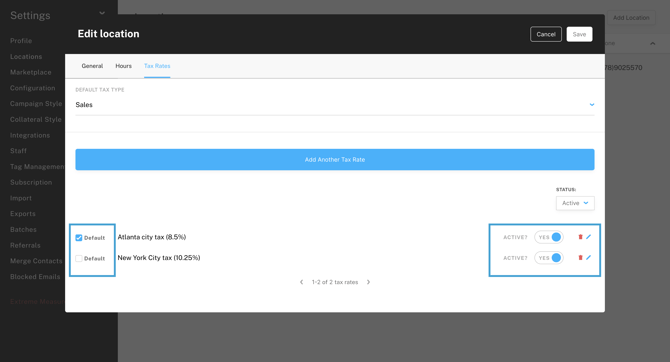
NOTE: Default tax rates will automatically populate on an invoice when an invoice is created. Please make sure to hit Save in order to save any changes made in the Edit tax rate pop-up.
Invoice Comments
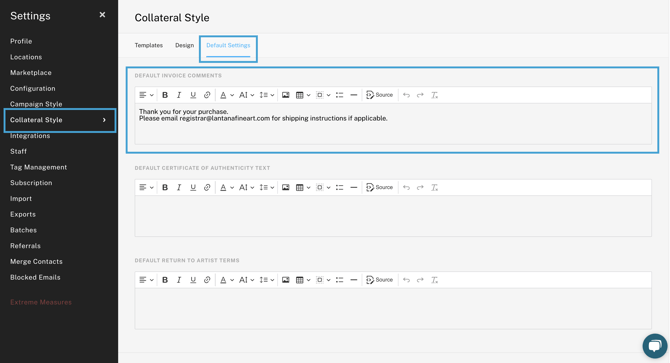
You can control the default Invoice Comments you want to have on your Invoices through this field value. For instance, if you like to have language like "Thank you for your purchase", return terms for the works, or any disclosure of business terms for the sale, this is a great field to engage with.
Through your Collateral Style tab in Account Settings on the Default Settings tab, you can make these adjustments:
Pro Tip: Adjustments made here will not retroactively apply to historical invoices. Adjustments will only apply to invoices or other collateral going forward.
When a new invoice is created, that message will automatically show up under the Invoice Comments section. You can always add to or remove this message from an invoice.
Invoice comments can be found at the bottom of the invoice, directly under the balance information.
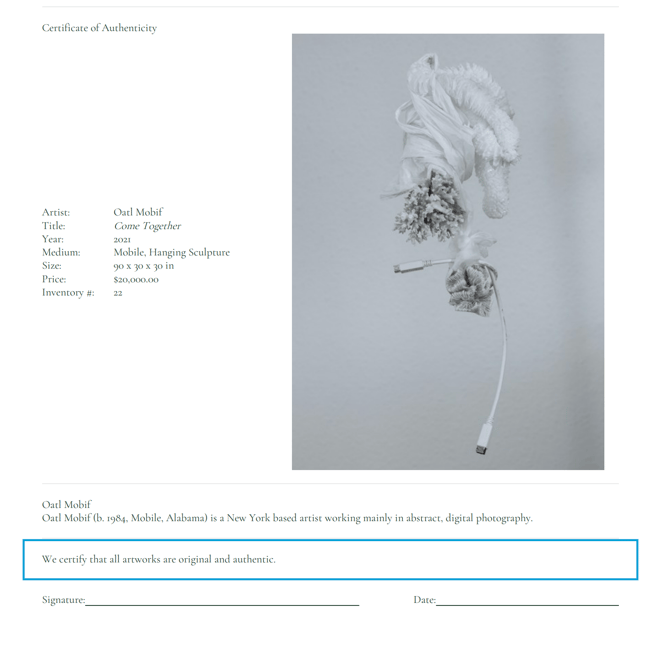
Certificate of Authenticity Text
You can streamline displaying default terms on your Certificate of Authenticity by adding default text. For instance, if there is any blanket language that needs to populate on this collateral type, you'll want to add this here into your Account Settings
Through your Collateral Style tab in Account Settings on the Default Settings tab, you can make these adjustments: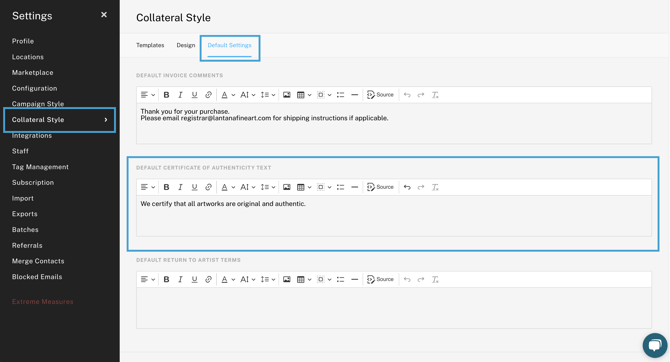
Return to Artist Terms
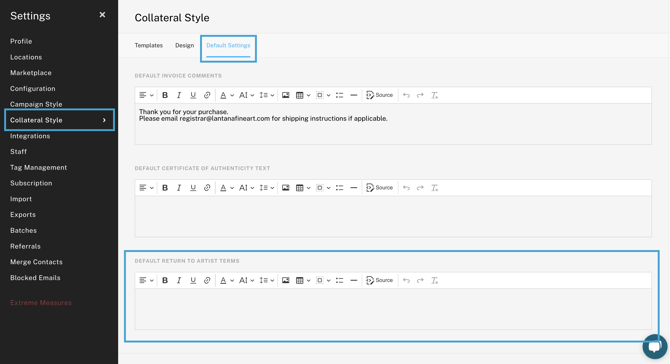
You can streamline displaying any default terms on your Inventory Return lists by adding this default text.
Through your Collateral Style tab in Account Settings on the Default Settings tab, you can make these adjustments: