Quick Jump To Guide:
How to add a new page
Page Types
Title and Navigation Toggles
Edit a page after it's been created
How to add a new page
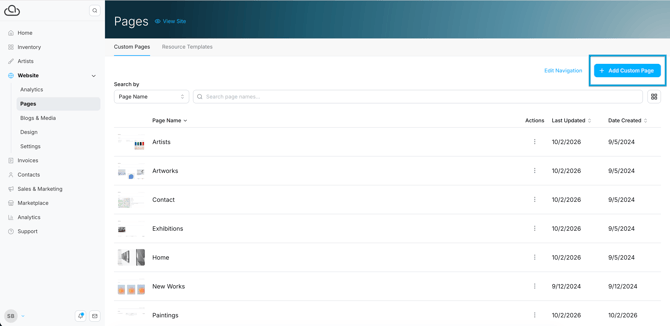
To add a new page, navigate to Website >> Pages and click the "Add Custom Page" button.
Page Types
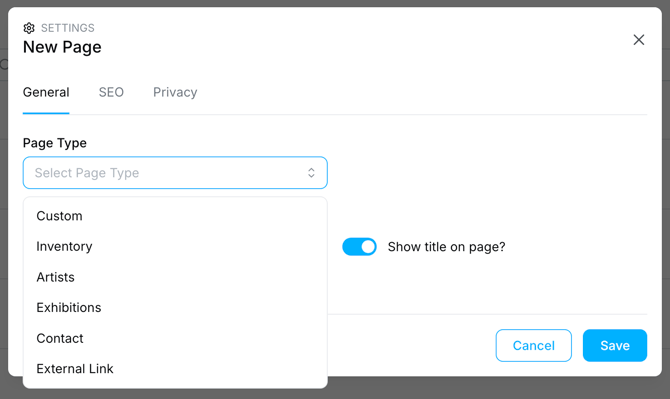
Select a page type from the pop-up. There are six options.
- Custom: A blank page to design from scratch
- Inventory: A page with an Inventory Block pre-added
- Artists: A page with an Artist Block pre-added
- Exhibitions: A page with an Exhibition Block pre-added
- Contact: A page with a Contact Form Block pre-added
- External Link: A link to an external URL.
Custom, Inventory, Artist, Exhibition, and Contact pages all open the website page editor. The pre-populated page types give you a head start, but you can add and adjust content on any of them.
Title and Navigation Toggles
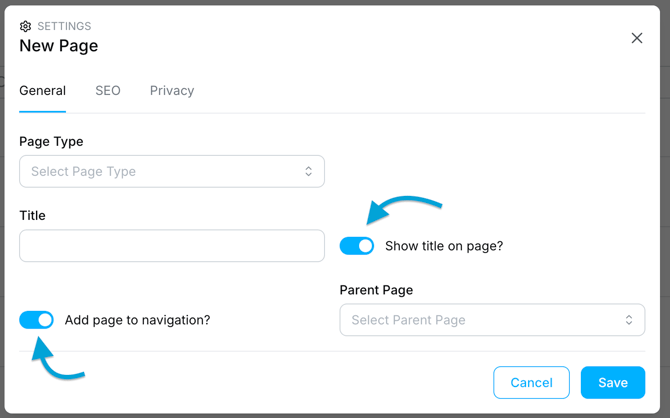
Two toggles control how the new page appears on your website
-
Show Title on Page? Pre-populates a {PAGE TITLE} token on the new page.
-
Add to page navigation? Adds the page to your website navigation. When toggled on, you can select a parent page to nest the new page under.
Edit an Existing Page
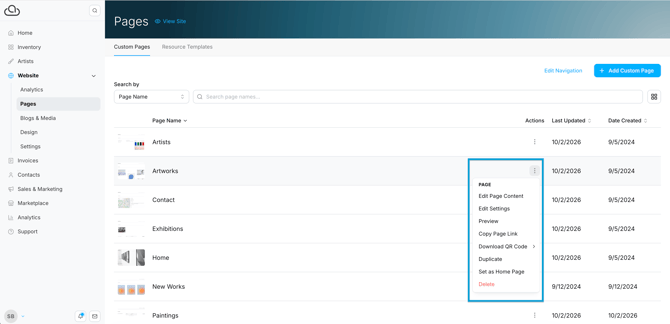
To edit an existing page, click the three dots and select "Edit Page Content" from the Actions dropdown.