
Quick Jump To Guide:
Overview
Marketplace/website
Uploads
Financial
History
Interested Contacts
Actions Ribbon
Inventory records are the core of ArtCloud. This article walks through each tab and field on an Inventory Record. You don’t need to fill out every field, but the more data, the better.
Overview
The Overview tab stores essential information about the item in your inventory.
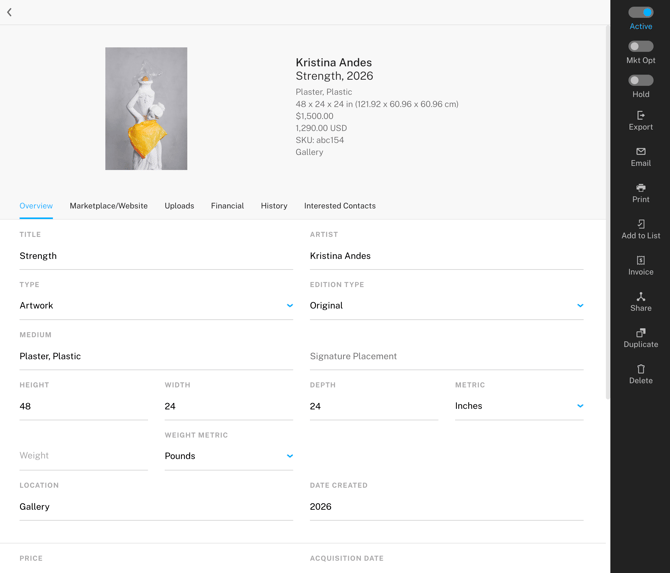
- Upload photo: attach a .jpg, .png, .gif, or .svg. file as the item's cover image. This image becomes the first image in the Uploads tab.
- Title: Enter the name of the item.
- Artist: Select an artist already in the account or create a new one.
- Type: Choose whether the item is artwork, merchandise, jewelry, furniture, lighting, or decor. Selecting a type reveals additional fields for more specific details.
- Edition Type: Designate the item as an original work or as a limited or unlimited edition.
- Medium: Pick a medium that's already in the account or create a new one.
- Signature Placement: Note where the item has a signature
- Dimensions: Enter the height, width, and/or depth and set the unit of measurement.
- Weight: Enter the weight and unit of measurement.
- Location: Enter the physical location of the item.
Note: Selling, consigning, or returning an artwork does not overwrite the Location field. The location stays exactly as you entered it.
- Date Created: Assign the item's creation date (defaults to the current year).
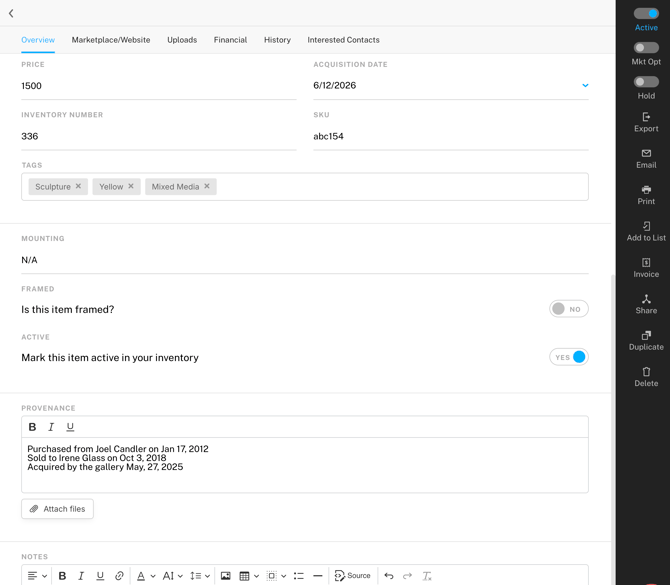
- Price: Enter the item's price (defaults to 0).
- Acquisition Date: Enter the date you acquired the item (defaults to today's date).
- Inventory Number: Assign a number to the item in relation to other Inventory Records. This number automatically counts up from the last item added, but you can adjust it per record.
- SKU: Enter an alphanumeric identifier.
- Tags: Associate the item with terms and phrases to organize, filter, and search across the ArtCloud Manager and Website Builder.
- Mounting: Enter notes about the item's mounting
- Is this item framed?: Indicate if the item is framed. When toggled on, additional fields appear to record frame details.
- Mark this item active in your inventory: Indicate if the item is Active in your inventory.
- Provenance: Enter records of an item's history as text or an upload.
- Notes and Private Notes: Enter extra information about the item. Notes can appear on your website and exports. Only your gallery team sees private notes.
Marketplace/Website
The Marketplace/website tab controls whether the item appears on the ArtCloud Marketplace or your website. You'll also sync items to Artsy from this tab.
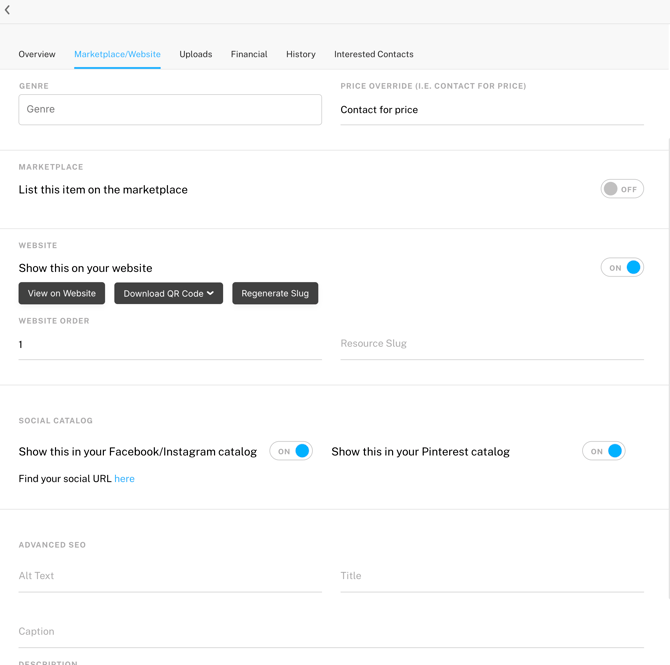
- Genre: Assign a genre to the item if it's opted onto the Marketplace.
- Price Override: Customize how the item's price displays publicly. Whatever you enter in this field replaces the price on the Marketplace or website.
- Artsy: Send, sync, or link the item to your Artsy account. This field only appears if you use the Artsy Integration.
- Marketplace and Website Toggles: Control and preview the item on the Marketplace or website.
- Website Order Number: Customize where the item displays in Inventory Lists blocks on your website.
- Resource Slug: Generate the resource slug for the item's page on your website.
- Social Catalog: Sync the item to a Facebook, Instagram, or Pinterest catalog.
- Advanced SEO: Adjust the SEO settings when implementing a formal SEO strategy. ArtCloud includes built-in SEO tools, so we don't recommend adjusting these fields without a formal strategy. Advanced SEO is only available on legacy Website Pro Plus and new Website Expert subscriptions.
Uploads
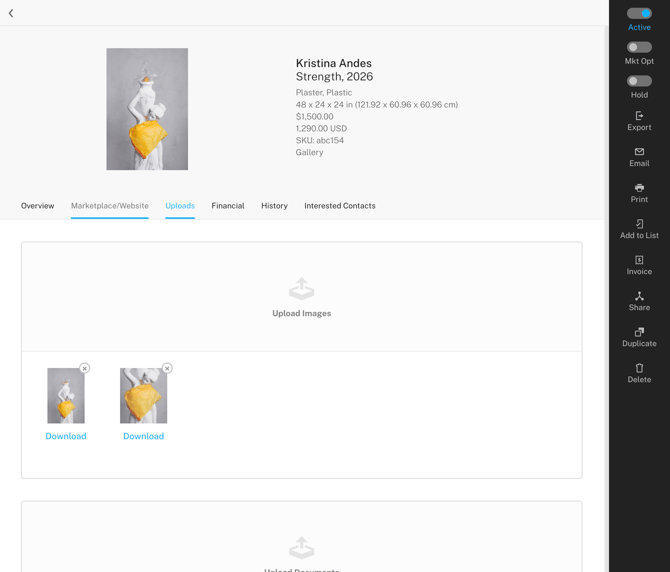
The Uploads tab stores images and documents associated with the item. Click to upload or drag and drop files into the tab. The first image in the list displays first on the website, Marketplace, and collateral. Drag images to rearrange their order.
Financial
The Financial tab manages consignment, shipping, and expense information for the item.
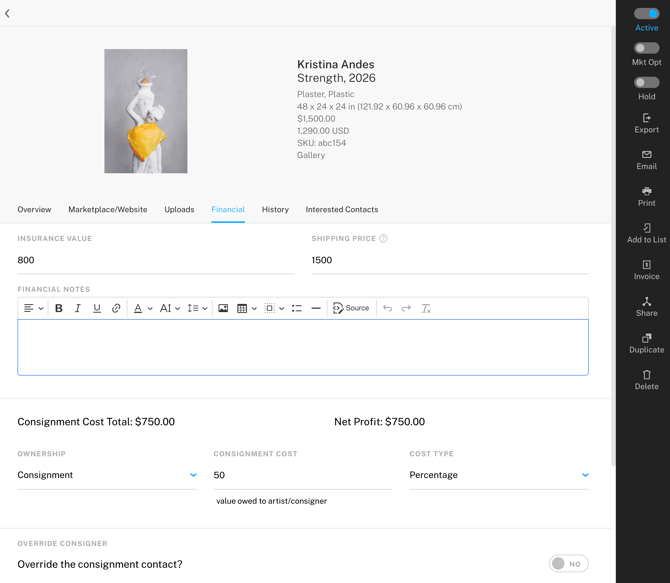
- Insurance Value: Enter the insurance value of the item (defaults to 0).
- Shipping Price: Enter the item's shipping price. This price can display on your website and auto-populates on Invoice Records for the item.
- Financial Notes: Record specific financial notes about the record.
- Ownership: Indicate if the item is owned or consigned.
- Consignment Cost: View or change the consignment cost. ArtCloud populates the consignment split according to the Artist Record. Adjust the amount directly on the Inventory Record.
- Cost Type: Set the units of the consignment cost: percentage or amount (defaults to 50%).
- Override Consigner: Change the consigner from the default artist to another contact. This feature is available on legacy Manager Pro Plus and new Manager Expert subscriptions.
- Expenses: Record expenses associated with the item, including Description, Date, Payee, Net Cost, retail price, and date, and choose how to factor expenses into the consignment cost. The Gallery and consigner incurred costs update automatically. This feature is available on legacy Manager Pro Plus and new Manager Expert subscriptions.
- Artist/Consigner Payments: View and record the payment due to the artist or consigner. ArtCloud automatically calculates the amount owed when an item sells. Read more here: Record, edit, & share Artist Payments.
History
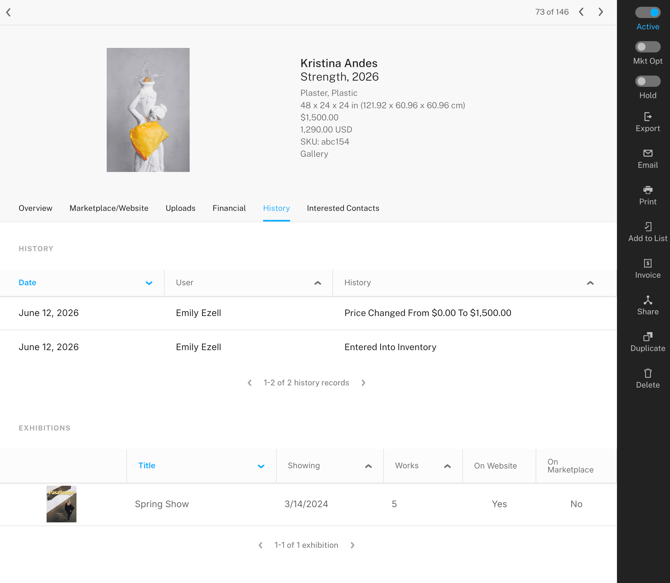
The History tab shows adjustments to pricing, location, and invoices on the Inventory Record. View the date and user associated with each adjustment.
Interested Contacts
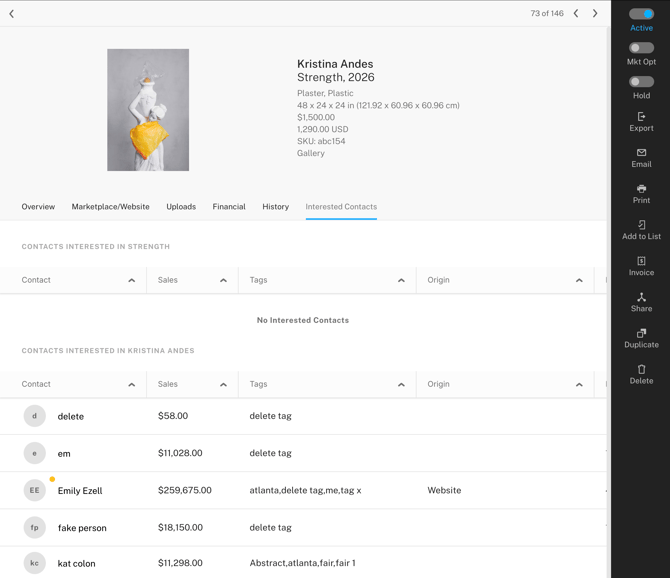
The Interested Contacts tab lists people who’ve inquired about or engaged with the item. Contacts who have asked about the item on the Marketplace or website, or received communications related to the item, appear here automatically.
Actions Ribbon
The black bar on the right side of the Inventory Record includes quick actions for frequent tasks.
|

|