
Quick Jump To Guide
How to Issue a Credit
What Happens After Issuing a Credit?
Credits vs. Refunds
How to Issue a Credit
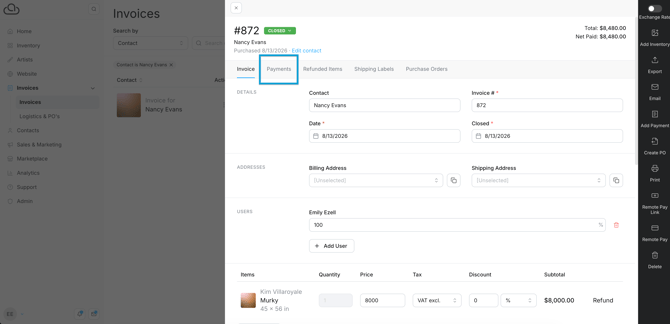
You can issue credits for any payment added to an invoice. To issue a credit, navigate to the Payments tab of an Invoice Record.
Click "Refund" and select "Issue Credit" from the popup.
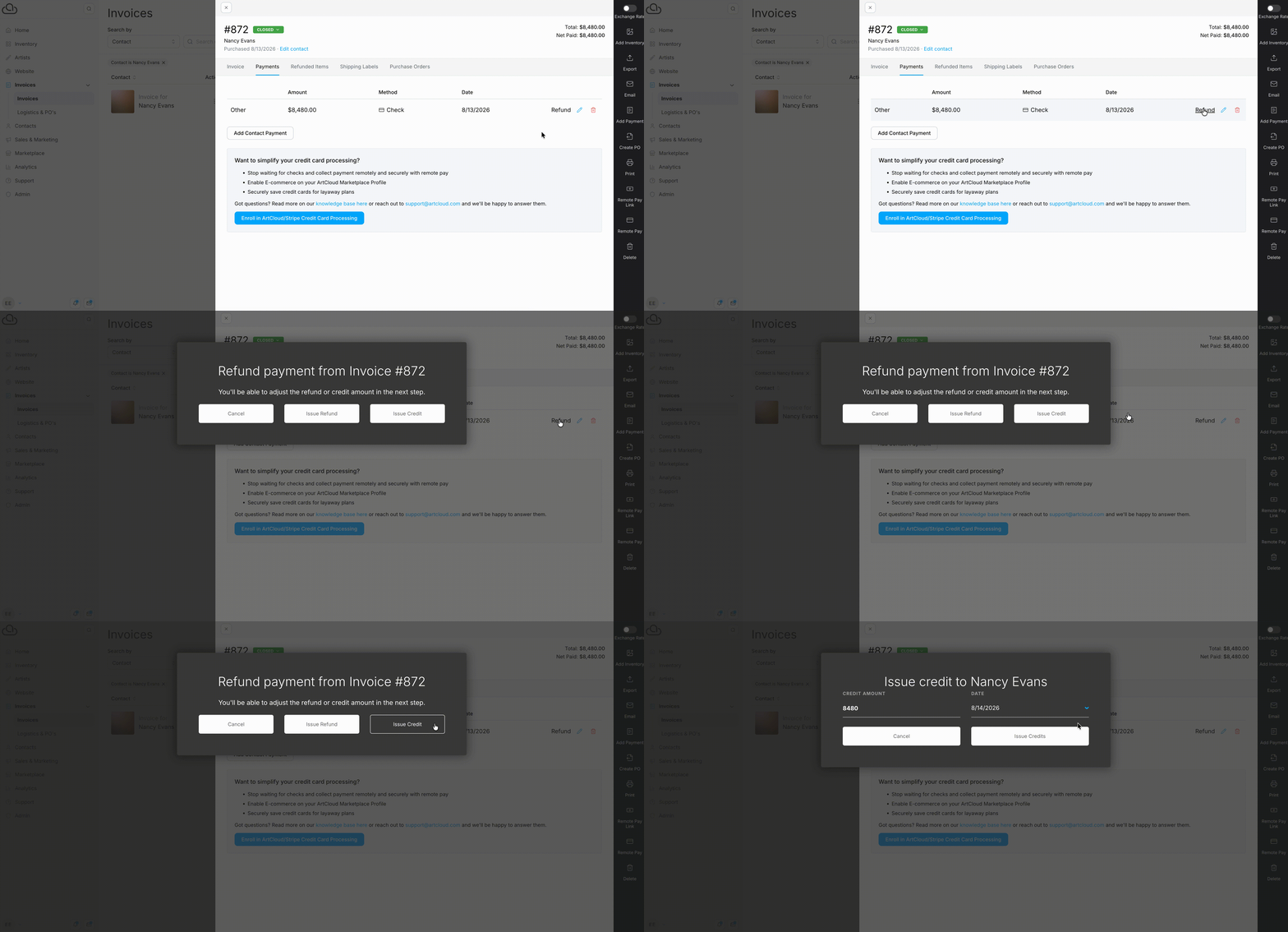
Edit the credit amount and issue date. ArtCloud defaults to the full payment amount and today's date. Click "Issue Credits" when you're finished.
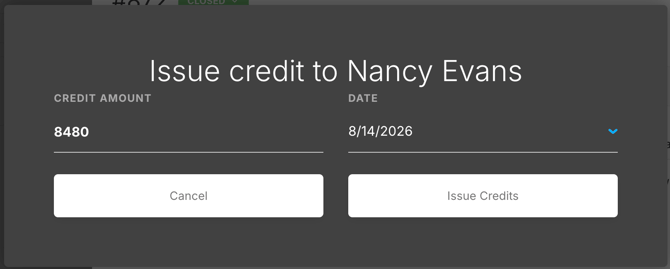
Note: Issuing a credit does not refund money to the buyer's payment method. The credit applies to the Contact Record associated with the invoice and can be used towards the contact's future purchases.
What Happens After Issuing a Credit?
- The net payment reverts to zero.
- The Invoice Record stays closed.
- The Payments tab on the Invoice Record logs the credit.
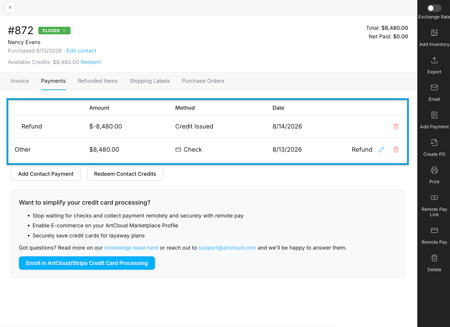
-
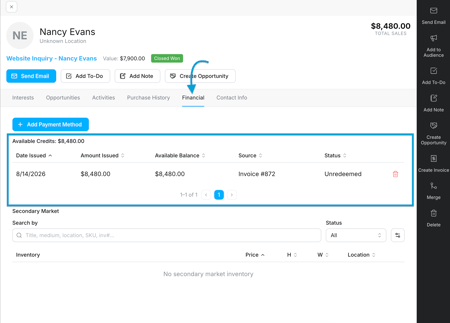
ArtCloud adds the credit to the associated Contact Record for use on future invoices. Read more: Apply a Credit on an Invoice.
Credits vs. Refunds
Issuing a credit keeps the full payment amount in ArtCloud. Refunding a payment returns money directly to the buyer's card and may incur processing fees.