
Quick Jump To Guide
Issue a Full Refund
Issue a Partial Refund
Note: Refunds work differently depending on whether your account is integrated with Stripe. With the integration, Stripe processes the refund and returns funds directly to the buyer's payment method. Without Stripe, issuing a refund records that the buyer was refunded outside of ArtCloud.
Issue a Full Refund
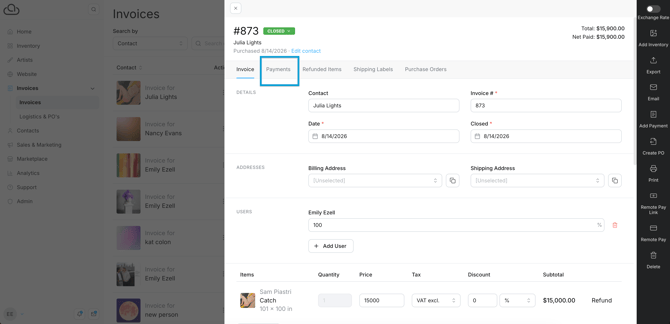
Navigate to the Payments tab of an Invoice Record.
Click "Refund" and select "Issue Refund" from the popup.
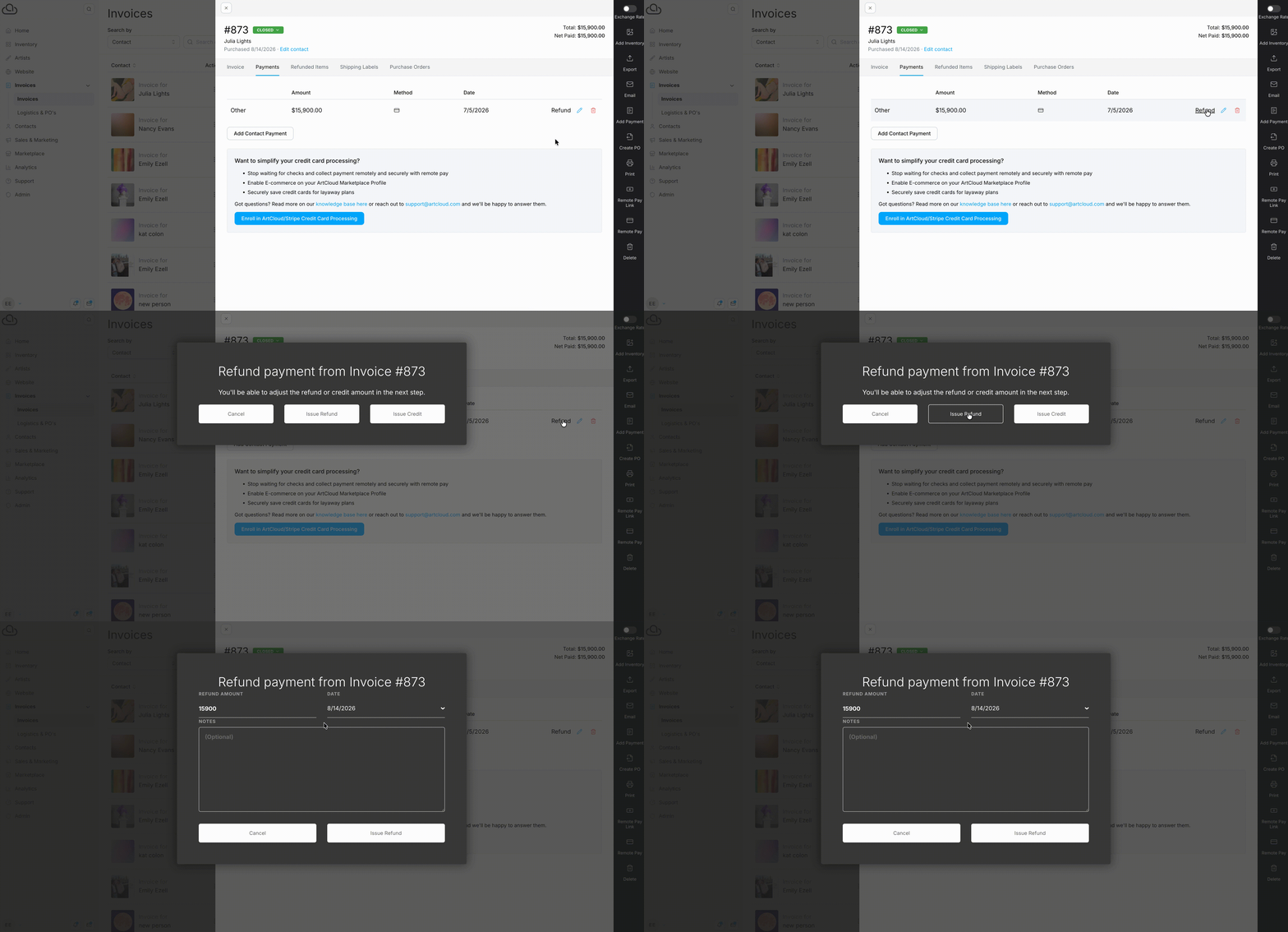
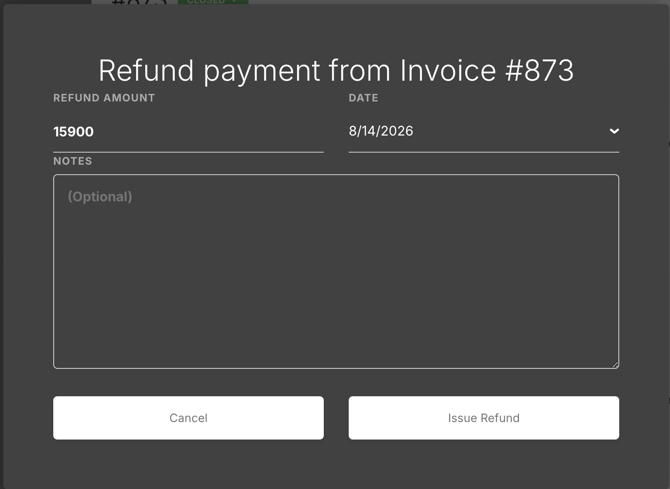
Keep the default refund amount, edit the issue date, and add optional notes. ArtCloud defaults to the full payment amount and today's date. Click "Issue Refund" when you're finished.
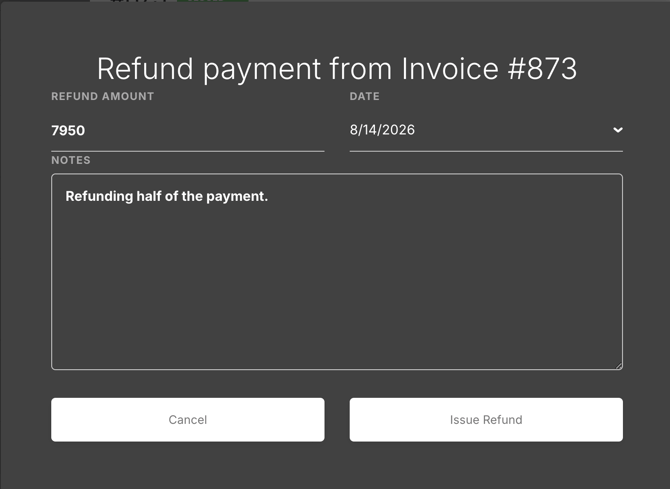
On the same refund popup, edit the refund amount before clicking "Issue Refund."
Tip: Stripe does not return processing fees on refunded payments. The full refund amount returns to the buyer, and the original processing fee is not recovered. To avoid losing processing fees, issue a credit. Read more about credits here: Issue a Credit.