
NOTE: Stripe does not refund the fees charged on initial payment in the event of a refund. If you issue a partial or full refund, your account will be reduced by the full amount of the refund.
How to Issue a Full Refund
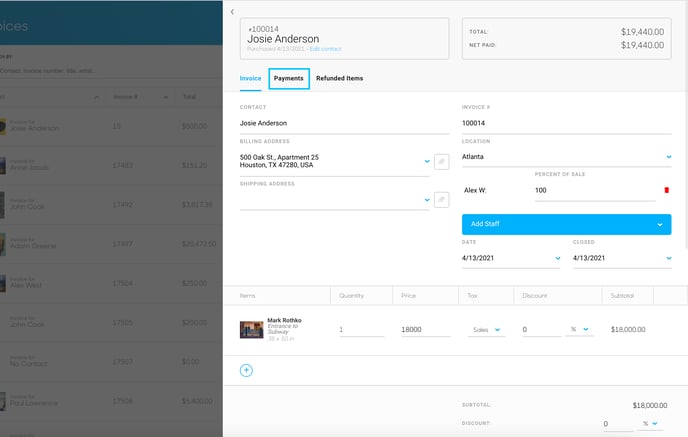
To issue a refund on an invoice, you'll need to first enter the editing screen of an invoice. Once there, click the Payments tab to see all payments made on this invoice.
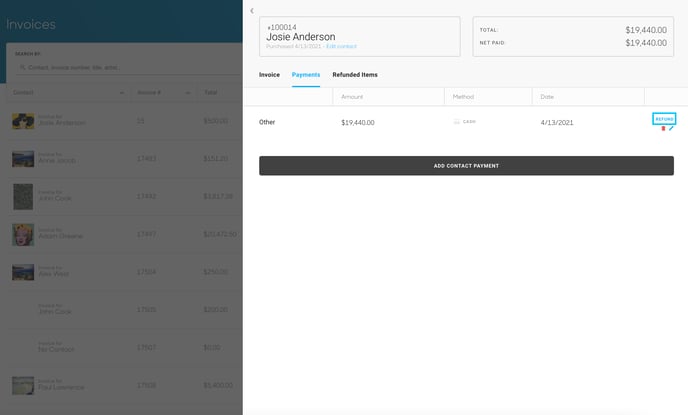
Next, hover over the payment that you'd like to refund with your mouse. A REFUND button, along with a trashcan and pencil icon will appear. Click the REFUND button.
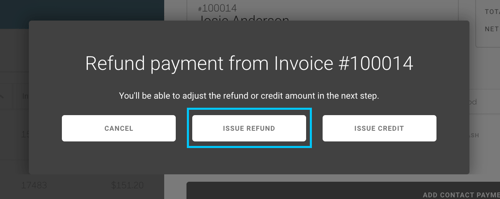
A popup will appear on your screen. Click the ISSUE REFUND button.
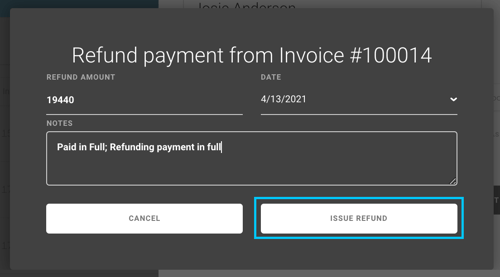
Next, a popup will appear with details pertaining to the payment that you are refunding. The notes that were on the original payment will appear here when refunding the payment. Click the ISSUE REFUND button to refund the entire payment amount.
How to Issue a Partial Refund
When you reach the screen above, rather than clicking ISSUE REFUND, change the amount that you would like to refund using the REFUND AMOUNT field in the top-left of the popup. Any notes input during the payment or refunding process will be historically tied to the Invoice.
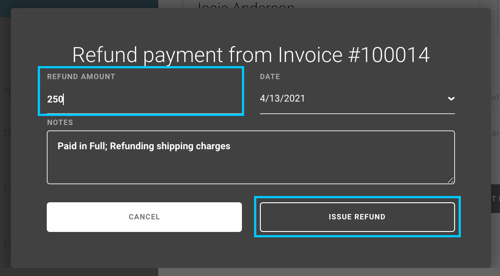
Click ISSUE REFUND when you are finished.
Suggested Readings
- How to refund or issue a credit for a line item on an Invoice