Quick Jump To Guide:
Filter Options
Stack Filters
Actions
Edit View
The contact dashboard lets you search and filter contacts based on a range of criteria. Use the top bar on the contact dashboard to generate lists of contacts who fit your criteria.
Filter Options
Filter options correspond to data points on Contact Records. The more data on a Contact Record, the more precisely you can filter.
Filters require different input options.
- Enter plain text.
- Name
- City
- State
- Zip
- Country
- Company
- Private Notes
- Artist Interest
- Artist Purchase
- Select "Is Equal" or "Not Equal" and enter plain text.
- Tag
- Origin
- Interests
- Pick Yes or No.
- Subscribed
- Holds
- Mailings
- Choose between options.
- Opportunity Stage
- User
- Choose a comparator (>=, <=, or =) and enter a value.
- Sales
- Opportunity Value
- Choose a time filter and select a date range
- Date Entered
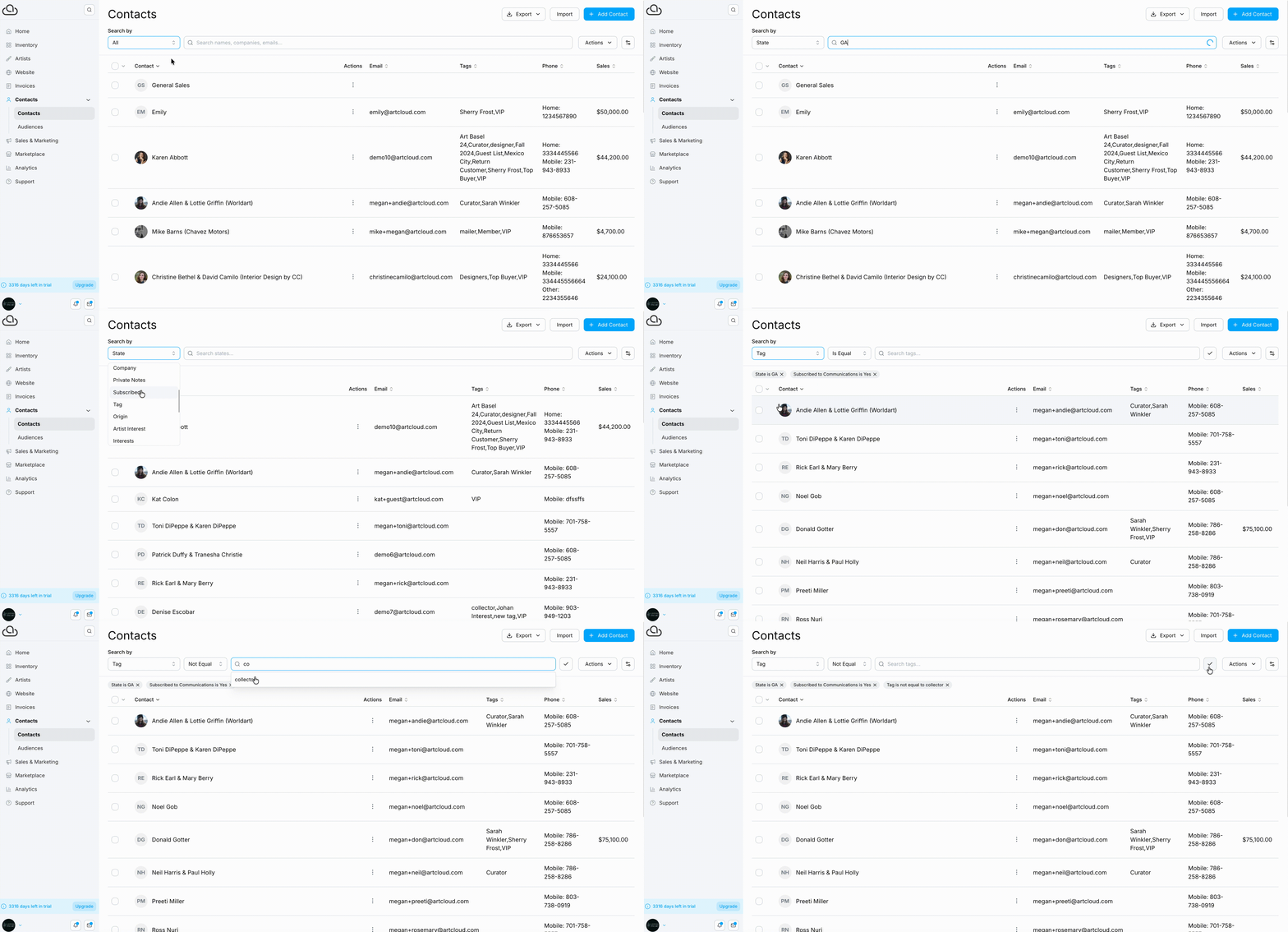
Stack Filters
Add multiple filters to generate a specific list of contacts.
Actions
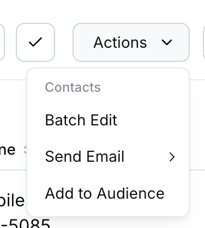
Use the Actions dropdown to edit or communicate with your search results.
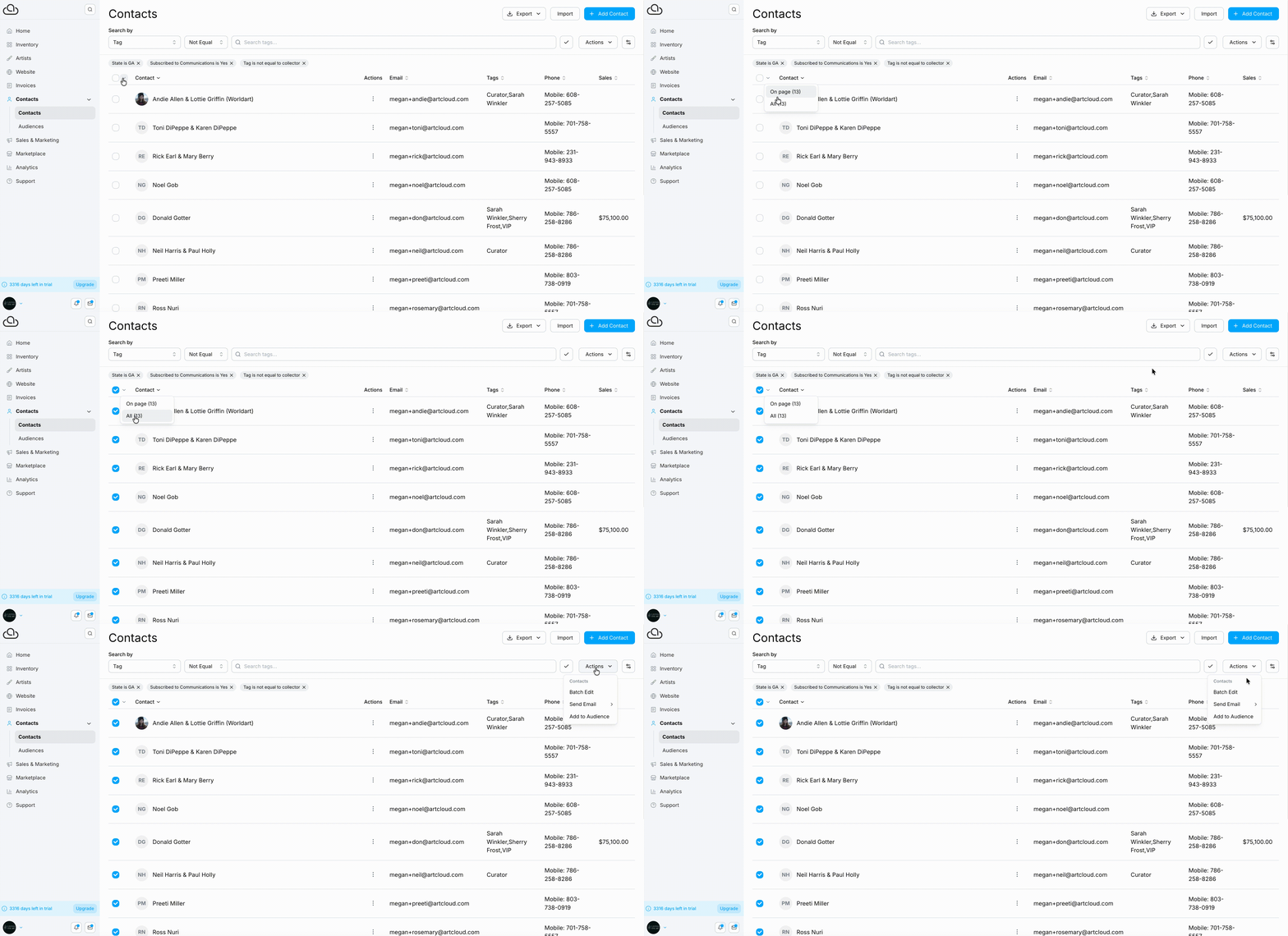
- Batch Edit: Make changes to the contact records in bulk
- Send Email: Send an email directly to the contacts
- Add to Audience: Add contacts to an Audience to use in email campaigns
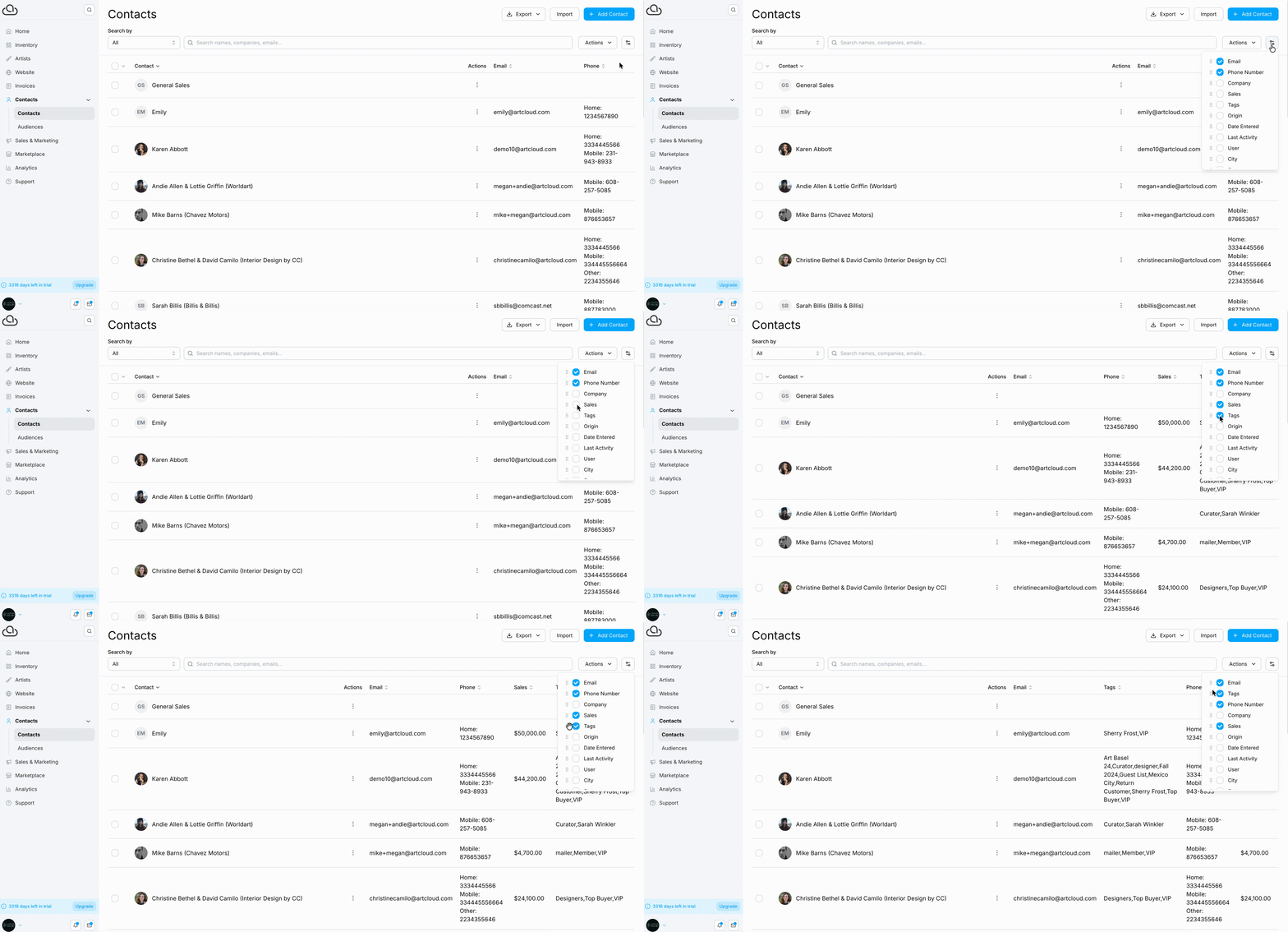
Edit View
Customize what data appears on the contact dashboard. Select data points and rearrange the order. ArtCloud saves your view for future visits.