
ArtCloud Website Glossary
Lists of key terminology for the Website product in ArtCloud
ArtCloud Website Glossary
-
Artist Profile - Resource Template >
The Resource Template that controls how individual artist pages appear on the website. The Artist Profile Template uses Tokens to display data from Artist Records in the Manager.
-
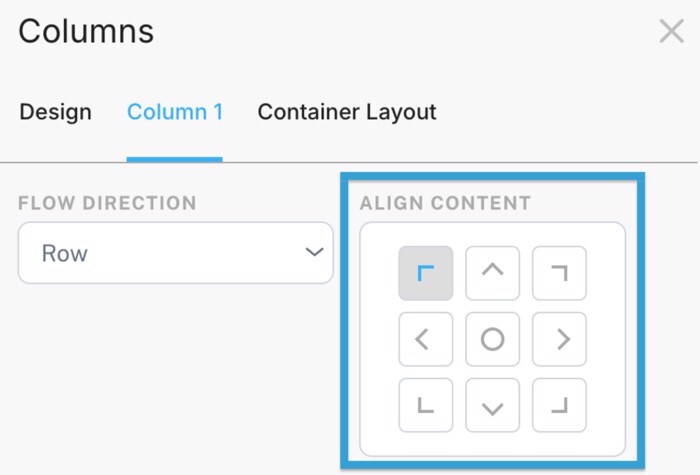
Align content >
A design setting in a Column Container that determines where content lives within a column. After adding a Content Block to a column, choose top, middle, bottom, left, middle, and right positioning.
-
Beta >
Beta means the feature is ready to use but still evolving. The feature may change based on customer feedback before it's generally available.
-
Blog >
Posts that display publications on the website. Create blog posts and list them on the website with a Blog Block. Use Linking to display posts on specific pages.
-
Blog and Media Linking >
A tool that associates blog posts and media entries with specific website pages. Link blogs and media by tag, artist, inventory item, or exhibition.
-
Button Design - Kits >
A Style Guide Kit that controls button appearance across the website. Customize Primary and Secondary button designs.
-
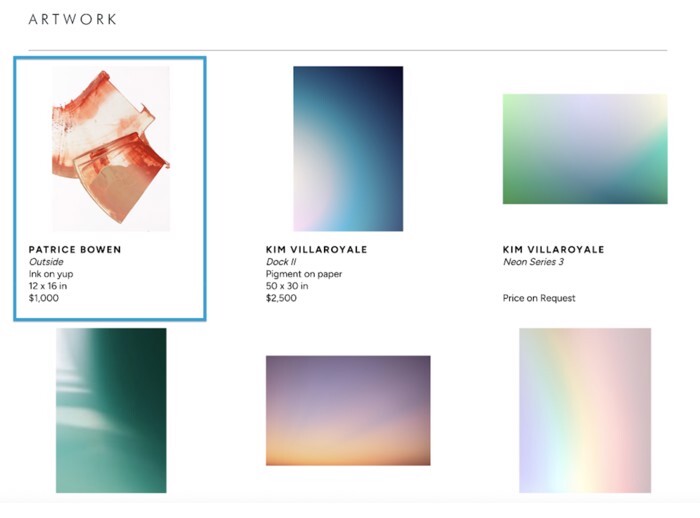
Cell >
The display of a single record within a List Block. Cell types include Inventory, Artist, Exhibition, and Blog cells. Tokens pull data from records in the ArtCloud Manager and display information in Cells.
-
Cell Design - Kits >
A Style Guide Kit that controls Cell appearance across the website. Customize or override Inventory, Artist, Show, Recently Viewed, and Blog cells. Changes apply to Cells sitewide.
-
Column >
A vertical section for structuring content on a website page. Drag and drop Content Blocks into columns to organize layouts.
-
Column Container >
A design feature for creating columns of content on a website page. Set the number of columns, add Content Blocks, and adjust the layout.
-
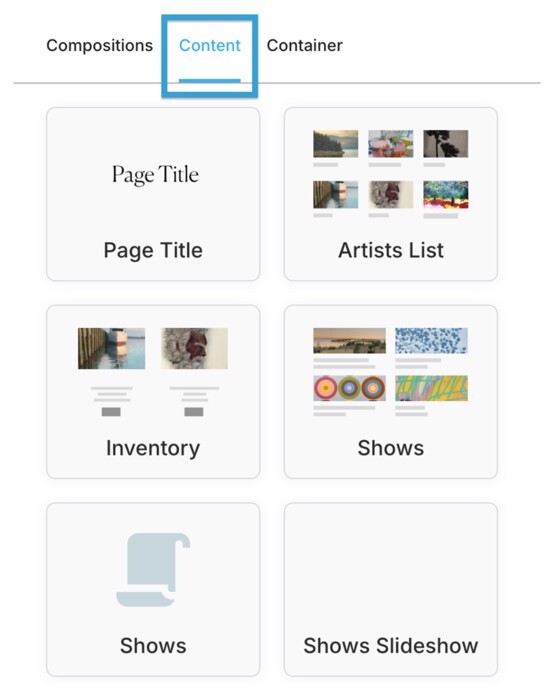
Content Block >
A website element that displays content and defines page appearance. Drag and drop Content blocks directly onto the page or into a Column or Tab Container.
-
Custom Pages >
Standalone website pages not linked to individual Inventory, Artist, or Exhibition records. Changes made to a Custom Page do not affect other pages. Start with a templated custom page, like Inventory, Artist, Exhibition, or Contact.
-
Design Resource >
The reference Artist, Inventory, or Exhibition Record used when editing a Resource Template. Change the Design Resource under the "Actions" dropdown.
-
Detail Pages >
Resource Templates that display data from a single Artist, Inventory, or Exhibition Record. Detail Pages share the same appearance across the website.
-
Domains >
The unique web address connected to a website, like artcloud.com.
-
Drag and Drop >
The process of adding Content Blocks to a website page. Wait for a blue or purple rectangle to appear before placing the block.
-
Exhibition Detail - Resource Template >
The Resource Template that controls how individual exhibition pages appear on the website. The Exhibition Detail Template uses Tokens to display data from Exhibition Records in the Manager.
-
Favicon >
The small logo that appears next to the website title in a browser tab.
-
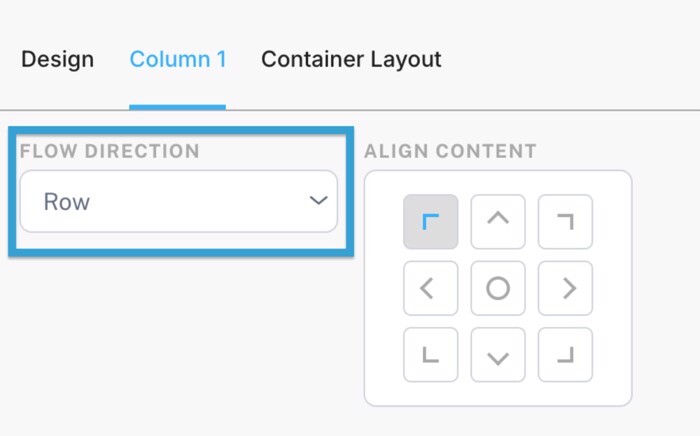
Flow direction >
A design setting that determines the position of Content Blocks in a Column Container. After dragging and dropping two or more blocks in a column, choose between Row, to arrange the content side-by-side, or Column, to stack them vertically.
-
Forms >
Popups and Content Blocks that collect website visitor information. Types of forms include the Contact and Subscription forms, Subscription Popups, Inquiries, and Offers.
-
Global Style Sheet - Kits >
A Style Guide kit that controls text formatting across the website. Customize Heading Style, Body Style, and five Type Styles.
-
Header and Footer >
The top and bottom sections that appear on all website pages. Drag and drop Content Blocks into the Header and Footer Templates.
-
Height and Width >
Values that change the size of the Content Block itself without preserving its aspect ratio. Content does not maintain its aspect ratio, which can cause warping. Adjusting both values or simultaneously adjusting the Max Height and Max Width can stretch or compress the content.
-
Integrated >
The connection between the ArtCloud Manager and Website Builder. Data from Manager records automatically populates on Custom Pages and Resource templates based on the blocks and Tokens used.
-
Inventory Detail - Resource Template >
The Resource Template that controls how individual inventory pages appear on the website. The Inventory Detail Template uses Tokens to display data from Inventory Records in the Manager.
-
Kit >
A design tool that controls global appearance settings across the website. Kits include the Global Style Sheet, Button Design, Cell Design, Blog Post, and Custom Page Kits.
-
List Blocks >
Content blocks that display a collection of Cells. Types of List Blocks include Artists, Inventory, Exhibitions, Blogs, and Media Lists. Use tags and statuses from the Manager to control which records appear in a list.
-
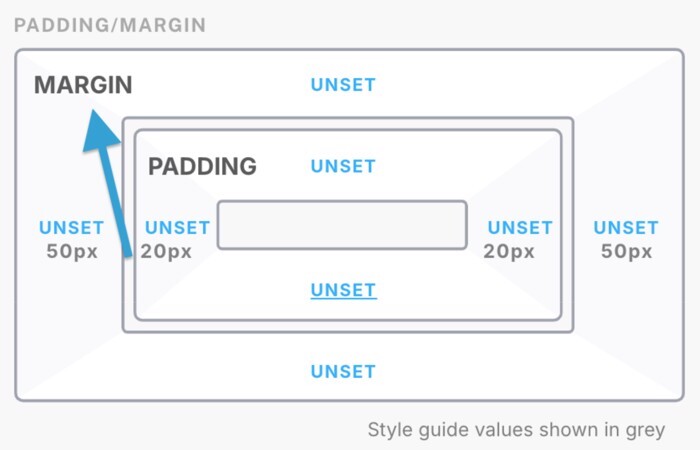
Margin >
A design setting that sets the outer space between a Content Block and other elements on the page. Use margin to control the distance between separate blocks.
-
Max Height and Max Width >
Values that change the size of content within a Content Block while maintaining its aspect ratio. Adjusting both values or simultaneously adjusting the height and width can stretch or compress the content.
-
Media >
Posts to display videos and other embedded content on the website. Create media entries and display them on the website with a Media List Block. Use Linking to add media entries to specific website pages.
-
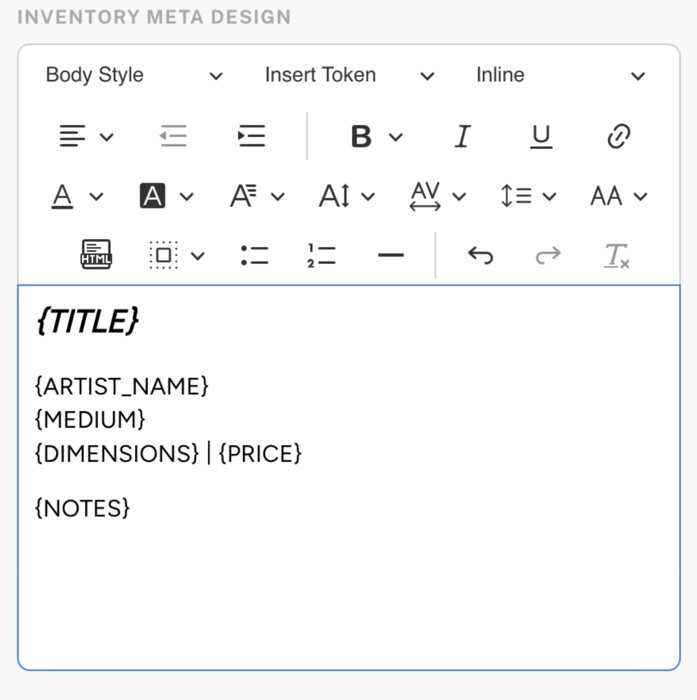
Meta Text Block >
A Content Block to add Tokens to a Resource Template.
-
Navigation >
The menu structure displayed in the website header. Add menus and submenus to guide visitors through the site.
-
Navigation Logo >
The logo displayed in the website header. Clicking the Navigation Logo returns visitors to the website homepage.
-
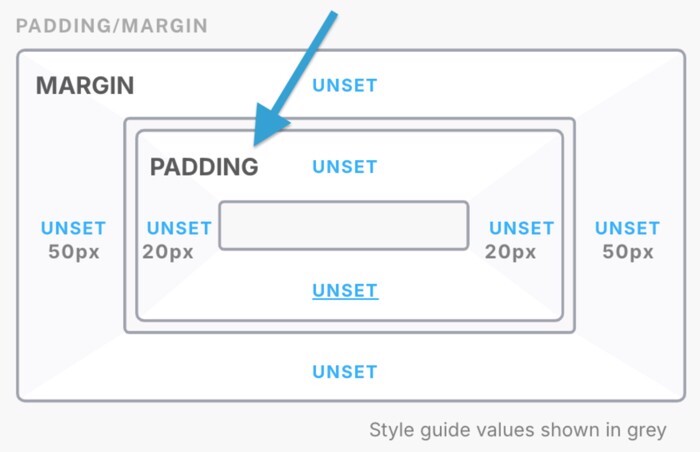
Padding >
A design setting that sets the inner space between a block's content and its edges. Use padding to control how close content sits to the border of its Content Block.
-
Pages >
Structures to display and customize website content. There are two types of pages: Custom Pages and Resource Templates.
-
Redirects >
A list of URLs from a previous website build that became inactive after the domain connected to ArtCloud. Use redirects to send visitors from old URLs to the correct pages.
-
Resource Templates >
Global website pages that control how sitewide content appears. Resource Templates include the Artist Profile, Inventory Detail, Inventory Modal, and Exhibition Detail Templates, as well as the Header, Footer, and Popups.
-
SEO >
Search Engine Optimization (SEO) determines how a website appears in search results. Site structure, content organization, and other factors affect SEO. ArtCloud websites include built-in SEO features.
-
Style Guide >
A central location to manage global website design. Select and edit Kits to adjust the Global Style Guide, Button Design, Cell Design, Blog Post, and Custom Page Kits.
-
Tab Container >
A design feature to organize content in subpages. Tabs let visitors switch between multiple views on a single page.
-
Theme >
A design choice that determines the overall appearance of the website.
-
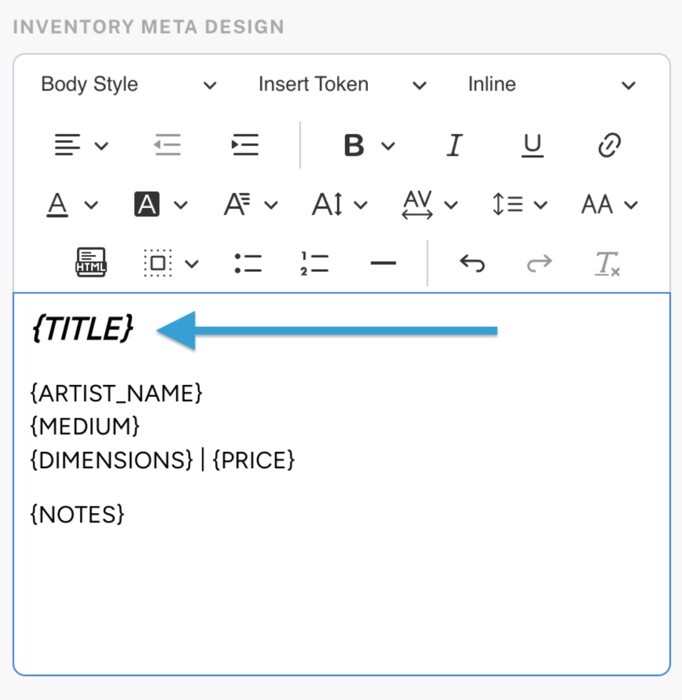
Token >
A placeholder that represents information in the ArtCloud Manager. Tokens pull data from Manager records and display the information on corresponding pages. Use Tokens in Meta Text Blocks and customize the text style.
-
Workaround >
A method that resolves a platform limitation. Use a workaround to complete actions that the current ArtCloud features do not fully support.