
Quick Jump To Guide:
What are Page Templates?
Types of Resource Templates
Editing Resource Template
What are Resource Templates?
Resource Templates control how content appears across your website. They pull data from the manager side, including Artist, Inventory, and Exhibition Records, so you don’t have to build individual pages for every artist, inventory, or exhibition.
Types of Resource Templates
There are 13 types of Resource Templates.
The Artist Profile, Inventory Detail, Inventory Modal, and Exhibition Detail Resource templates control how each of those page types appears on the website. The design of one of these templates will apply to all corresponding page types on the website. For example, how you configure the Exhibition Resource template will affect all exhibition pages on the website.
These videos from our Getting Started series go into more detail about each page type:
Note: Only gallery accounts have an Artist Profile template.
The Header and Footer templates control the header and footer design, which display on all website pages. Common Header elements include a logo and navigation menu. Footers can include social media links, addresses, and subscription forms.
Lastly, the pop-ups, Search Result, and Cart/Checkout Resource Templates determine the appearance and content of those website elements.
Note: You must integrate Stripe to access and edit the Purchase and Cart/Checkout Resource Templates.
Editing Resource Templates
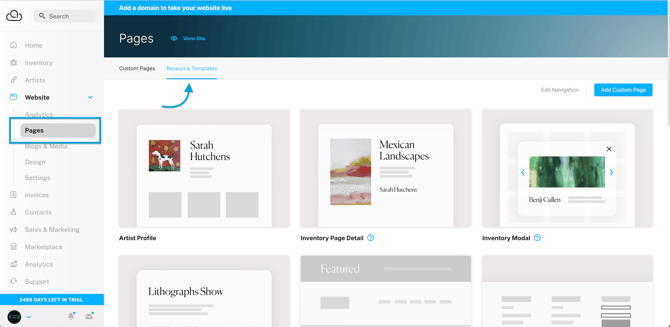
To view the Resource Templates, navigate to Website >> Pages and click "Resource Templates."
After opening a type of Resource Template, you can customize the page or pop-up with various drag-and-drop content blocks.
On the Artist Profile, Inventory Detail, Inventory Modal, and Exhibition Detail templates, ArtCloud will pull a record from the Manager for you to preview the design. Still, edits you make to the page affect all website pages following the given template.
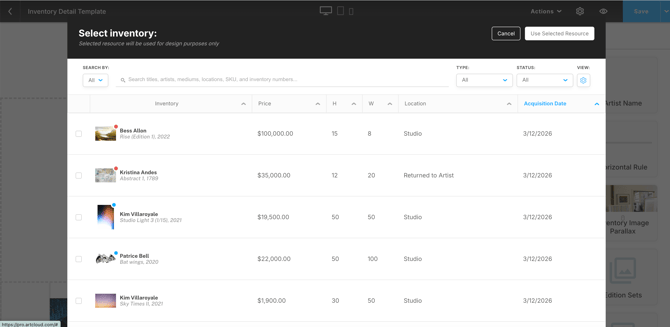
You can change the preview example with the Actions dropdown. Click "Choose Design Resource," and select an item from the pop-up.
Once you set up a Resource Template, all corresponding page types on the website will follow the template’s design.