Quick Jump To Guide:
What is a token?
Examples
Adding Tokens
Customizing Tokens
What is a Token?
Tokens are placeholder text that represent information in the ArtCloud Manager. ArtCloud identifies tokens with braces, capital letters, and underscores, for example: {PRICE}. You'll find tokens for almost every field on Artist, Inventory, and Exhibition Resource Templates.
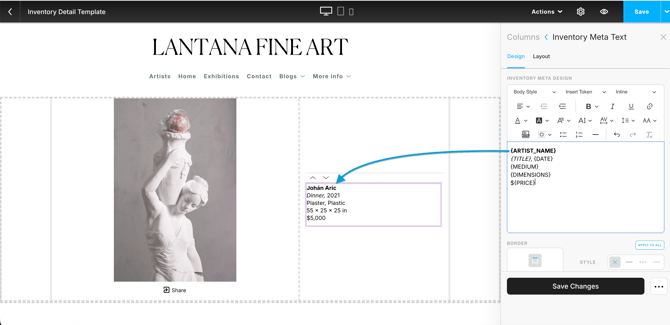
When you add tokens to these Resource Templates, the Website Builder pulls information from the corresponding field on Inventory, Artist, and Exhibition Records. If a field is empty on the record, nothing displays on the website page.
Examples
Examples of tokens include {DIMENSIONS}, {ARTIST_BIOGRAPHY}, and {DESCRIPTION}. These tokens are available on Inventory, Artist, and Exhibition Resource Templates, respectively.
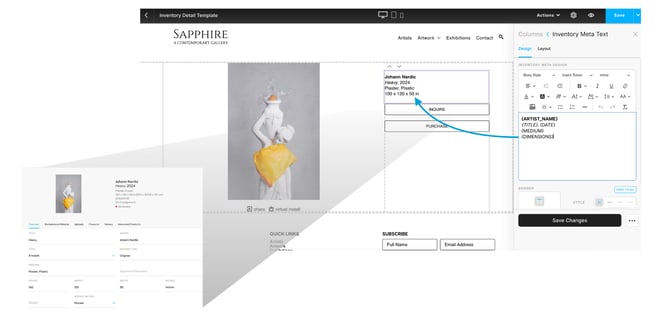
{DIMENSIONS} displays the length, width, and depth from an Inventory Record. Find this token on the Inventory Resource Template.
{ARTIST_BIOGRAPHY} displays the text from the Biography field on an Artist Record. Find this token on the Artist Profile Resource Template.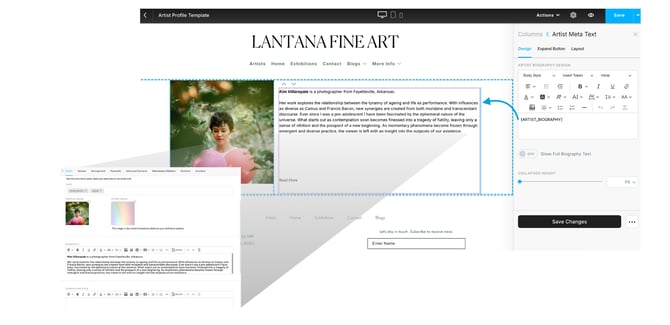
{DESCRIPTION} displays the text from the Description field on an Exhibition Record. Find this token on the Exhibition Detail Resource Template.
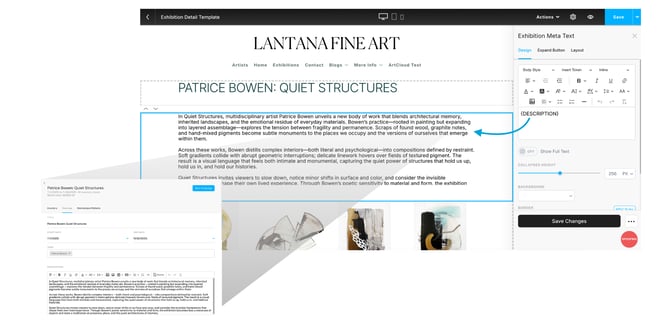
Each page pulls data from its own record, so every inventory page shows that item's unique dimensions, every artist page shows that artist's biography, and so on.
Note: Tokens are available based on the type of Resource Template, Cell design, and Meta Text block. Not all tokens are available on every page.
Adding Tokens
Some tokens appear automatically based on the Meta Text block. For example, an Inventory Meta Text block may default to {ARTIST}, {TITLE}, {MEDIUM}, and {DIMENSIONS}.
To add more tokens, use the Insert Token dropdown in the text block.
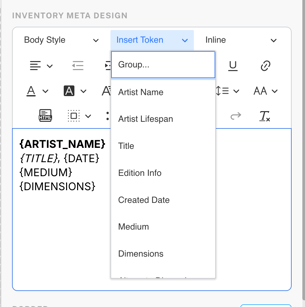
Tokens only work in Meta Text blocks and will not appear on regular Text blocks.
Customizing Tokens
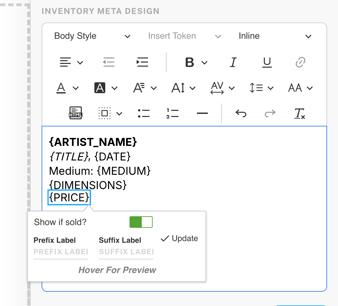
You can further customize tokens with prefix labels, suffix labels, and display toggles.
Prefix and Suffix labels
Prefix and suffix labels let you add static text before or after a token's value. The label displays every time the token appears, regardless of the data shown.
For example, entering "Medium:" as a prefix label on a {MEDIUM} token displays "Medium:" before the inventory's medium.
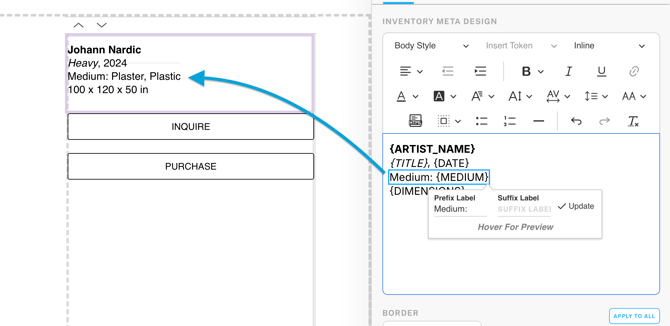
Note: Add a space before or after the label text to prevent it from running into the token value.
Display Toggles
Some tokens include toggles that control when the token appears. For example, the {PRICE} token on the Inventory Meta Text block includes a toggle that automatically hides the price for sold items.