
Quick Jump To Guide:
Marketplace / Website Opt Controls
Since Exhibitions are data points that are brought into your website or the Marketplace, you can add an Exhibition or Show to your website as you create this Exhibition in your Manager account. Keep potential buyers aware of show dates, inventory, installation images, and more!
This process involves both the ArtCloud Manager as well as the ArtCloud Website Builder.
Create an Exhibition
To create an Exhibition, click on the Inventory item in the Navigation menu, then Exhibitions. Next, click the Add Exhibition button in the top-right corner of the screen.
-gif.gif?width=688&height=386&name=2024-10-01_15-14-26%20(1)-gif.gif)
This is the Exhibition overlay. Notice that there are three tabs: Inventory, Overview, and Marketplace/Website.
Add Inventory to your Exhibition
On the Inventory tab, we can add inventory to this Exhibition list using the blue Add Inventory button. This will bring up a modal for you to search and filter for the works that you want to add into the show. Select the items with the check mark box to the left and Add # Items.
Pro Tip: A lot of customers choose to filter by Artist, Tag, Active status, or even a combination of multiple filters to find the works to add into the show.
Did you know? After selecting an item, you can remove the filter at the top of the modal and continue searching! The platform will remember your choices.
3.) Fill out the Overview section
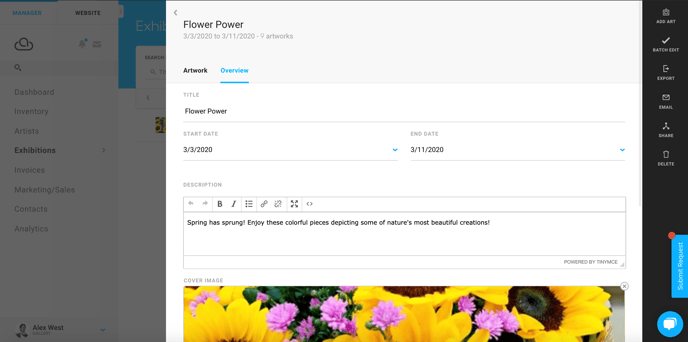
Next, you'll need to fill out the Overview section. All of the fields that are filled out will appear in the details page of the Exhibition.
Exhibition Title

The title of your Exhibition. This will be displayed on your Exhibition Listing Page(the page that displays all of your exhibitions), and your Exhibition Detail Page(the page that appears when you click on a single exhibition).
Exhibition Start and End Dates

The start and end dates of your exhibition. These appear on both your Exhibition Listing Page and Exhibition Detail Page.
Exhibition Description
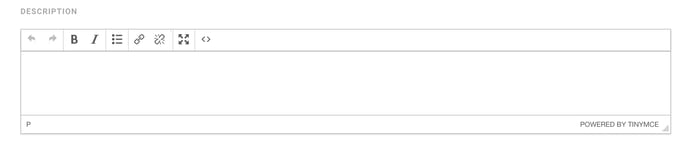
A description of your Exhibition. Many gallery owners use this to highlight what artists will be featured in the exhibition, as well as locations and times. This appears in your Exhibition Listing Page.
Exhibition Cover Image

A preview image for the Exhibition Listing Page. The image that is uploaded to this field will always be instantly cropped.
Installation Photos
Use this field to add images of installations featured in your Exhibition. You can leave this blank if you would like, but to add them to your page, check out our article on modifying the Exhibition Page template.
Now that we've filled out all of the necessary information for our Exhibition, we can create an Exhibition Display Page to display all of our Exhibitions.
4.) Create your Exhibition Display Page
You can do this in two ways: You can either drag an Exhibition block into a Custom page, or create a new page, making it an Exhibition Page. You can do so by clicking the blue ADD NEW PAGE button in the top-right of the Pages page, then choosing the Exhibitions dropdown item in the Select Page Type dropdown.

Your Exhibitions page is now all set!