
Quick Jump To Guide:
Piece by Piece
Bulk Add
Import from Another Platform
Import from a CSV
Inventory Records store all the information about the items in your collection. Add inventory to your ArtCloud Account in three ways:
- Create records piece by piece
- Bulk add
- Import from another platform
- Import from a CSV file
Piece by Piece
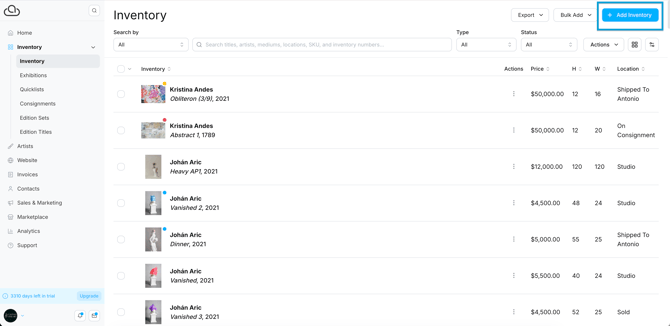
Navigate to the Inventory Dashboard and click "Add Inventory" at the top right. ArtCloud generates a new blank record for you to enter the item's details.
Note: We recommend uploading images that are at least 1200 pixels on the longest side.
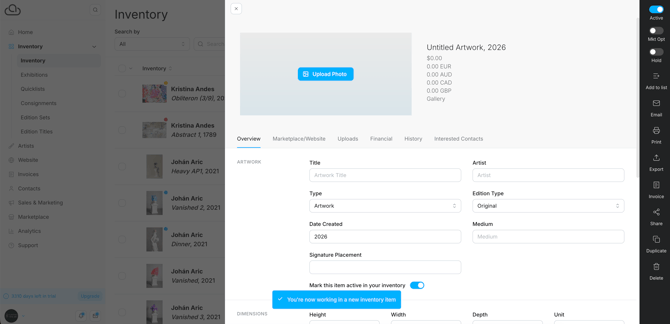
Read more here: Inventory Record Overview. Or, watch this video from our Getting Started Series: Inventory Records.
Bulk Add
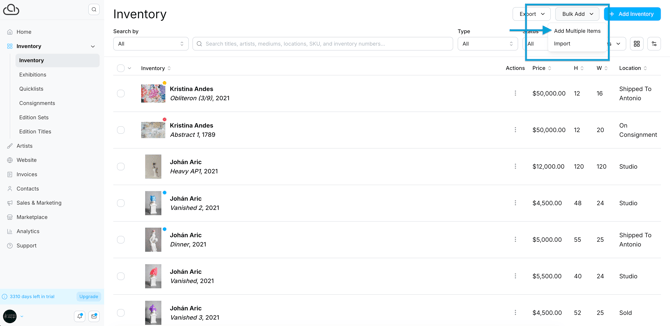
Navigate to the Inventory Dashboard and click "Bulk Add." Select "Add Multiple Items."
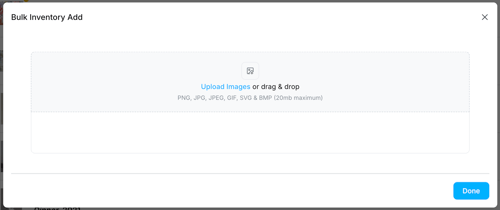
A popup directs you to upload images of your inventory. Drag and drop multiple image files or select from your local storage.
On the next screen, enter the core details about the item
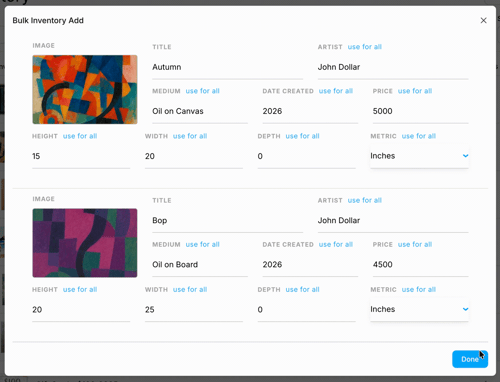
- Title: ArtCloud will populate the Title field with the file name. You can change the value in this field though.
- Artist: Pick an artist already in the account or create a new Artist Record.
- Medium: Pick a medium already in the account or create a new medium option.
- Date Created: ArtCloud defaults to the current year, but you can enter a different value.
- Price, dimensions, and units: Fill out the appropriate information.
Tip: Use the "Use for All" button to apply the same value to all items in the bulk add.
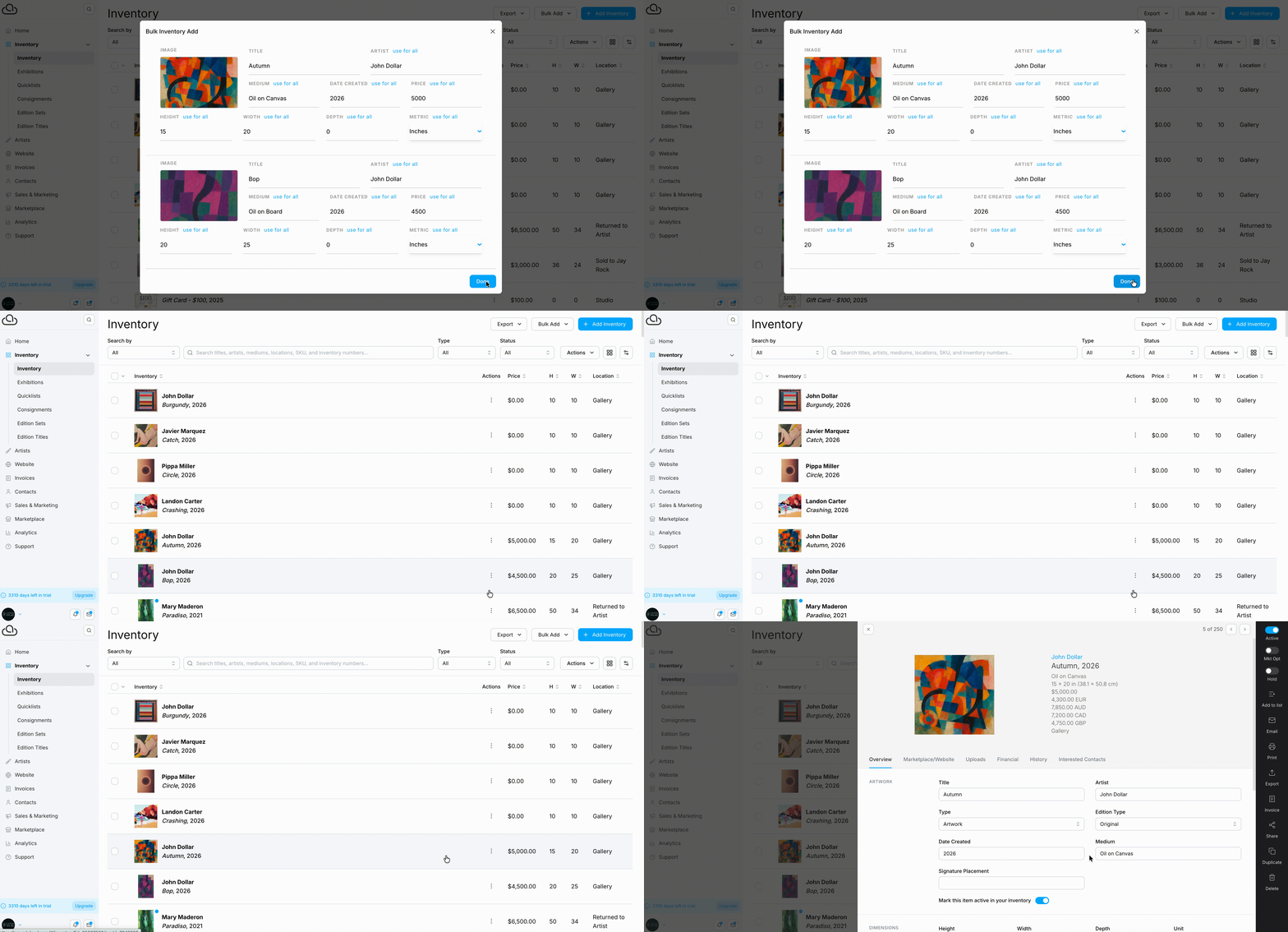
Click "Done," and ArtCloud creates new Inventory Records for the items you bulk added. Fill in additional details one by one or with batch editing.
Import from Another Platform
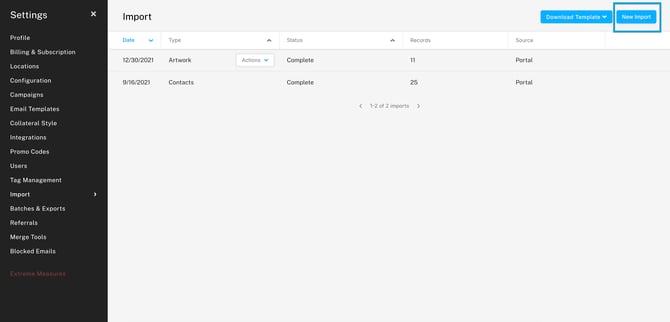
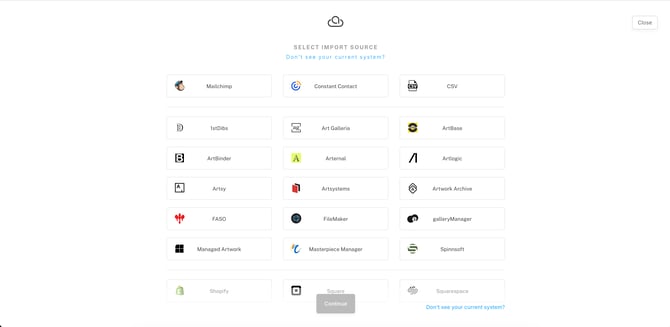
Navigate to Account Settings >> Imports. Click "New Import" and select the platform you want to import from.
Depending on the platform, you'll either log in to your account and bring in your data. Or submit your contact information, and an ArtCloud team member will reach out to help.
Import from a CSV
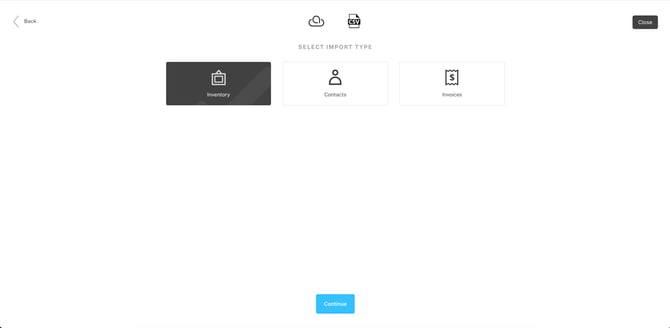
Navigate to Account Settings >> Imports. Click "New Import," select "CSV," and select the type of data you're uploading. ArtCloud offers import templates for inventory, contacts, and invoices.
Read more here: Import your Inventory into ArtCloud and The Inventory Migration Template. Or, watch this video from our Getting Started Series: Importing Your Data.