
Quick Jump To Guide:
Default Process
What Does the Buyer Experience?
What Happens in Your ArtCloud Account?
Complete the Purchase
Default Process
When someone purchases inventory from your ArtCloud website or the ArtCloud Marketplace, ArtCloud automatically generates an Invoice and Contact Record in your account. You're responsible for finalizing and closing the invoice.
Note: Online checkout requires a paid Manager subscription and a Stripe integration. Read more: Stripe Payment Processing.
What Does the Buyer Experience?
After a website or Marketplace visitor adds an item to their shopping cart, they:
1. Enter their payment method and submit the purchase. Their card is not charged.
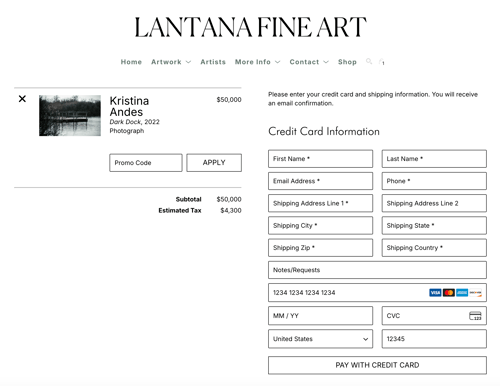
Note: Shipping and taxes aren't included in checkout. If a piece has a flat shipping rate, you can set the shipping price on the Inventory Record, and ArtCloud will factor the amount into the purchase. Read more: Set the Shipping Price of an Artwork.
2. Receive an email confirmation about the sale. You also receive this email.
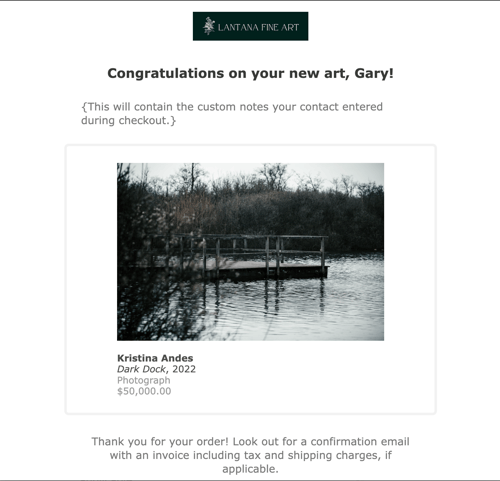
Tip: Customize this email in Account Settings >> Configuration >> Transactional Emails. Read more: Transactional Emails.
What Happens in Your ArtCloud Account?
After a buyer checks out on your website or Marketplace, ArtCloud automatically does three things:
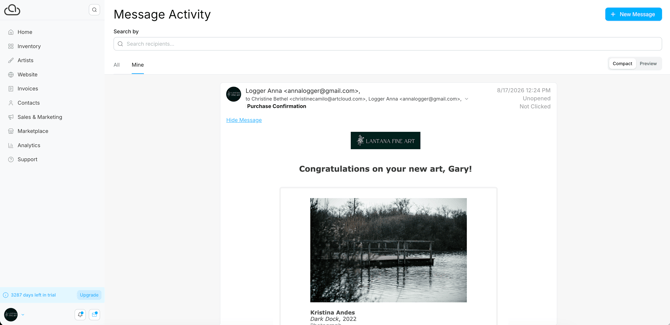
1. Sends the account admin an email notification about the sale. Customize user settings to control who else receives sales notifications. Read more: User Notifications.
2. Creates an open Invoice Record for the sale with an origin of "Website." The invoice includes the buyer's contact information and the items purchased. Add services, shipping, discounts, or taxes before completing the payment.

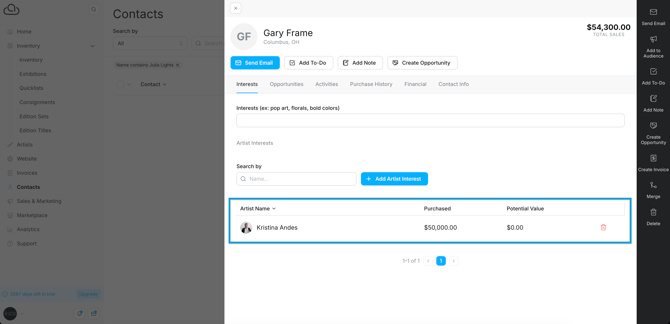
3. Creates a Contact Record for the buyer with an origin of "Website" and adds Artist Interests for the items purchased. Stripe securely saves the card information to the Contact Record.
Complete the Purchase
To close the invoice:
1. Make any adjustments to the Invoice Record, like adding shipping, discounts, or taxes.
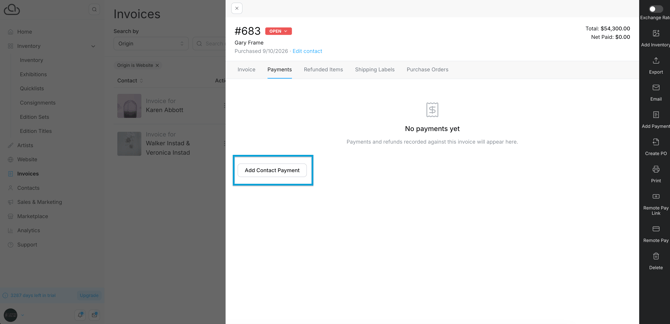
2. Navigate to the Payments tab and click "Add Payment."
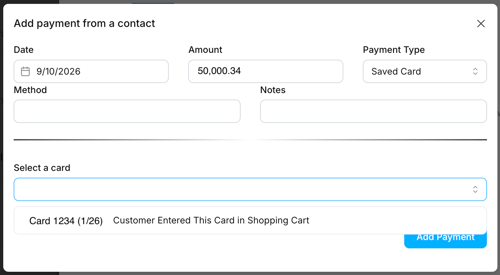
3. In the pop-up, select the buyer's card from the dropdown and click "Add Payment." Stripe bills the card on file.
4. Send the buyer an invoice or confirmation of the sale.